Introduction
Technical SEO is the foundation that determines whether your content can rank—and Webflow handles most technical optimizations automatically out of the box.
While WordPress sites require plugins, custom configurations, and constant technical maintenance, Webflow sites ship with clean code, fast performance, mobile optimization, and SEO-friendly architecture built-in. No plugins. No complicated setups. No developer expertise required. For a full breakdown of how the two platforms stack up, see our comparison of whether WordPress is good for SEO compared to Webflow.
The technical SEO advantage: Google's crawlers favor fast-loading, well-structured, mobile-responsive sites. Webflow delivers all three automatically—giving your content a head start before you write a single word.
This doesn't mean Webflow sites rank automatically (content quality still matters), but it does mean the technical foundation for ranking is solid from day one. You can focus on creating great content instead of troubleshooting technical issues.
This guide covers everything you need to know about technical SEO in Webflow—from Core Web Vitals and site structure to schema markup and advanced optimizations. Whether you're launching a new Webflow site or auditing an existing one, you'll understand exactly how Webflow handles technical SEO and what you still need to optimize manually.
Core Web Vitals & Performance
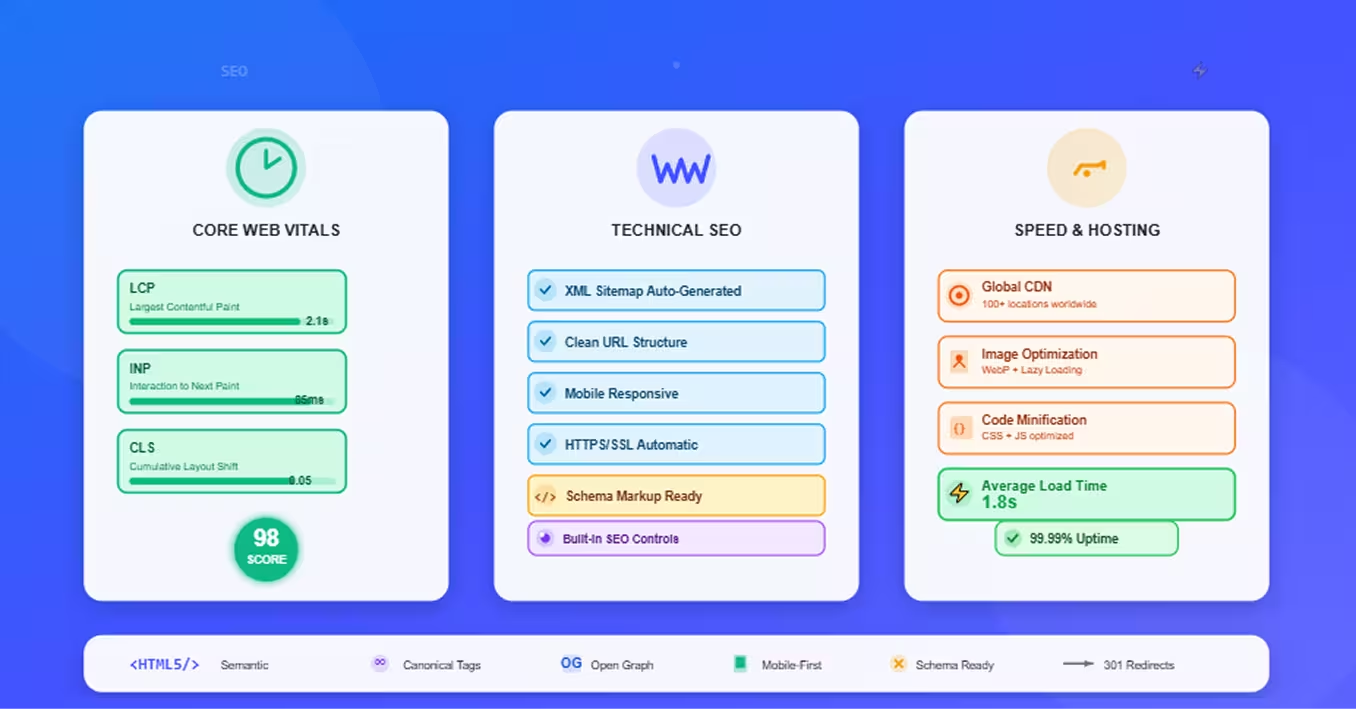
Core Web Vitals are Google's standardized metrics for page experience—and Webflow sites consistently score well without additional optimization.
Understanding Core Web Vitals
Google measures three key metrics:
Largest Contentful Paint (LCP): How quickly the main content loads
- Target: Under 2.5 seconds
- What it measures: Time until largest image or text block renders
- Impact on rankings: Significant—slow LCP hurts visibility
First Input Delay (FID) / Interaction to Next Paint (INP):
- Target: Under 100ms (FID) / 200ms (INP)
- What it measures: Responsiveness to user interactions
- Impact: Affects user experience and engagement metrics
Cumulative Layout Shift (CLS): Visual stability while loading
- Target: Under 0.1
- What it measures: Unexpected layout shifts during page load
- Impact: Poor CLS frustrates users and signals low-quality experience
If your scores are outside these targets, our dedicated guide on what to do when your Core Web Vitals assessment fails walks through every fix step by step.
Webflow's Automatic Performance Optimizations
Webflow handles performance optimization automatically:
Global CDN: Content delivered from servers closest to users worldwide
- Sub-2-second load times globally
- Automatic asset caching
- DDoS protection included
Image optimization:
- WebP format conversion (smaller file sizes)
- Lazy loading (images load as user scrolls)
- Responsive image sizing (appropriate dimensions per device)
CSS and JavaScript optimization:
- Code minification (removes whitespace, comments)
- Asset combination (fewer HTTP requests)
- Critical CSS inlining (faster initial render)
Clean HTML output:
- Semantic markup
- No bloated code or unnecessary divs
- Efficient rendering
Performance Monitoring
Tools to check Core Web Vitals:
Google PageSpeed Insights: Free tool analyzing real-world performance
- Enter your URL
- Review Core Web Vitals scores
- Get specific improvement recommendations
Google Search Console: Real user data from actual visitors
- Core Web Vitals report
- URLs grouped by performance
- Mobile vs. desktop breakdown
WebPageTest: Advanced performance testing
- Waterfall charts showing asset loading
- Filmstrip view of page rendering
- Multi-location testing
Performance Improvement Strategies
Even Webflow's optimized performance can be enhanced. For a comprehensive look at every technique, see our complete Webflow performance optimization guide.
Image optimization:
- Compress images before upload (TinyPNG, ImageOptim)
- Use appropriate dimensions (don't upload 4000px images for 800px containers)
- Lazy load background images with custom code if needed
Limit external scripts:
- Third-party scripts slow pages (tracking, analytics, widgets)
- Load only essential scripts
- Use async or defer attributes on custom code
Reduce font loading impact:
- Limit custom font variations (don't load 10 font weights if using 2)
- Use font-display: swap in custom code
- Consider system fonts for body text
Minimize animations:
- Complex Webflow interactions can impact FID/INP
- Use CSS animations over JavaScript when possible
- Test interactions on mid-range mobile devices
For a practical walkthrough of speed improvements specific to Webflow, our guide on how to increase website speed in Webflow covers the highest-impact tactics in detail.
"Webflow sites consistently score 90+ on PageSpeed Insights without optimization. With basic best practices, 95-100 scores are achievable." — Webflow Performance Expert
Site Structure & Crawlability
Google must find, crawl, and understand your site before it can rank your pages—Webflow makes this seamless.
Clean URL Structure
Webflow generates SEO-friendly URLs automatically:
Automatic slug creation: Page titles convert to clean URLs
- Title: "Best Project Management Software"
- URL:
yoursite.com/best-project-management-software
Customizable slugs: Edit URLs as needed
- Keep URLs short, descriptive, keyword-focused
- Use hyphens between words (not underscores)
- Avoid special characters, numbers, dates
URL best practices:
- Descriptive and readable
- Include target keyword when natural
- Shorter is better (under 60 characters ideal)
- Match site hierarchy (
/category/subcategory/page)
XML Sitemaps (Automatic)
Webflow generates and maintains sitemaps automatically:
What sitemaps do: Tell search engines which pages exist and update frequency
Webflow sitemap features:
- Auto-generates
/sitemap.xml - Updates automatically when content published
- Includes all published pages
- Respects page SEO settings (noindex excluded)
CMS collection sitemaps: Blog posts, products, etc. automatically included
No manual intervention needed: Unlike WordPress (Yoast, RankMath), Webflow handles this natively
Robots.txt Configuration
Control search engine crawling behavior:
Webflow's default robots.txt: Allows all crawlers, points to sitemap
Custom robots.txt (available on higher plans):
- Block specific pages or sections
- Set crawl-delay if needed
- Specify different rules per bot
Best practices:
- Don't block CSS/JavaScript (Google needs these to render pages)
- Use noindex meta tags instead of robots.txt for pages you don't want indexed
- Verify robots.txt at
yoursite.com/robots.txt
Internal Linking Architecture
Strategic internal linking builds authority and user navigation:
URL structure hierarchy:
Homepage
  → Category pages
    → Subcategory pages
      → Individual pages
Internal linking benefits:
- Distributes page authority (link equity) across site
- Helps Google understand site structure
- Improves user navigation
- Establishes topical relationships
Webflow tools for internal linking:
- Navigation menus (automatically updated)
- Breadcrumbs (show page hierarchy)
- Collection lists (dynamic related content)
- Manual contextual links in rich text
Best practices:
- Every page should be 3 clicks or fewer from homepage
- Use descriptive anchor text (not "click here")
- Link contextually within content
- Create hub-and-spoke structures for topic clusters—our guide on how to develop an SEO content strategy in Webflow explains how to build this model from scratch
On-Page Technical Elements
Webflow provides granular control over on-page SEO elements.
HTML Semantic Structure
Proper HTML structure helps search engines understand content:
Heading hierarchy (H1 > H2 > H3):
- One H1 per page (page title)
- H2s for main sections
- H3s for subsections
- Logical nesting (don't skip levels)
Semantic HTML elements:
<article>for blog posts and articles<nav>for navigation<header>and<footer>for page sections<aside>for sidebars and related content
Webflow advantages: Visual designer generates proper semantic HTML automatically
Meta Tags and Open Graph
Essential meta tags for SEO and social sharing:
Title tag (most important on-page SEO element):
- Webflow's SEO settings: Custom title per page
- Best practices: 50-60 characters, include keyword, unique per page
- Default: Page name + site name
Meta description:
- Webflow's SEO settings: Custom description per page
- Best practices: 150-160 characters, compelling, includes keyword
- Not direct ranking factor but affects CTR
Open Graph tags (social sharing):
- OG Title: Headline when shared on social media
- OG Description: Description in social shares
- OG Image: Visual for social cards (1200×630px recommended)
- Webflow provides fields for all OG tags
Twitter Cards: Similar to Open Graph
- Webflow auto-generates Twitter card tags
- Use same OG image for consistency
Schema Markup Implementation
Structured data helps Google understand content context:
What schema markup does: Provides explicit information about page content (article, product, recipe, event, etc.)
Benefits: Rich snippets in search results (star ratings, prices, dates, breadcrumbs)
Implementation in Webflow:
Custom code embed: Add JSON-LD schema to page or site-wide
Example Article schema:
json
<script type="application/ld+json">
{
  "@context": "https://schema.org",
  "@type": "Article",
  "headline": "Page Title",
  "author": {
    "@type": "Person",
    "name": "Author Name"
  },
  "datePublished": "2025-01-15",
  "image": "image-url.jpg",
  "publisher": {
    "@type": "Organization",
    "name": "Company Name",
    "logo": {
      "@type": "ImageObject",
      "url": "logo-url.jpg"
    }
  }
}
</script>
Common schema types:
- Article (blog posts)
- Product (e-commerce)
- LocalBusiness (local SEO)
- Organization (company info)
- Breadcrumb (navigation paths)
- FAQ (frequently asked questions)
Tools: Google's Rich Results Test validates schema
Canonical Tags
Prevent duplicate content issues:
What canonical tags do: Tell Google which version of similar pages is primary
Webflow canonical handling:
- Auto-generates canonical tags for all pages
- Points to the page's own URL by default
- Prevents www vs. non-www duplication
Custom canonicals: Set custom canonical URL in page settings when needed
- Syndicated content: Point to original source
- Pagination: Point to canonical page
- Similar pages: Consolidate to primary version
Mobile Optimization
Google uses mobile-first indexing—mobile experience determines rankings.
Responsive Design by Default
Webflow is inherently responsive:
Breakpoint system: Design for desktop, tablet, mobile, and custom breakpoints
- Changes at any breakpoint inherit to smaller sizes
- Full control over mobile layout
No separate mobile site: Single responsive site adapts to all devices
- Avoids duplicate content issues
- Simplifies maintenance
Mobile design best practices in Webflow:
- Test designs at all breakpoints
- Ensure content is readable without zooming
- Stack layouts vertically on mobile
- Simplify navigation for small screens
Mobile-First Indexing
Google primarily uses mobile version for indexing and ranking:
Implications:
- Mobile experience more important than desktop
- Mobile content must be complete (not stripped down)
- Mobile page speed critical
Webflow advantage: Same HTML serves all devices, ensuring mobile version is complete
Touch Targets and Usability
Mobile usability affects rankings:
Touch target size: Buttons and links should be 48×48 pixels minimum
- Webflow default button sizes meet this standard
- Verify custom elements meet requirement
Spacing: Adequate space between clickable elements
- Prevents accidental taps
- Improves user experience
Viewport configuration: Webflow sets proper viewport meta tag automatically
Testing and Validation
Tools for mobile optimization:
Google Mobile-Friendly Test: Checks if page meets mobile standards
Google Search Console: Mobile Usability report
- Identifies mobile usability issues
- Lists affected URLs
- Provides fix recommendations
Webflow Designer: Preview at all breakpoints before publishing
Indexing & Search Console
Monitor and optimize how Google interacts with your site.
Google Search Console Setup
Essential tool for technical SEO monitoring:
Setup process:
- Create Google Search Console account
- Add property (your Webflow domain)
- Verify ownership (HTML tag method easiest in Webflow)
- Add verification code to Webflow site settings > SEO tab
Webflow verification: Copy verification meta tag, paste in Webflow custom code <head>, publish. Once Search Console is live, pair it with GA4—our guide on how to set up Google Analytics on Webflow properly covers the full integration process.
Sitemap Submission
Help Google discover all your pages:
Submit sitemap to Search Console:
- Navigate to Sitemaps section
- Enter
sitemap.xml - Submit
- Monitor for errors
Webflow sitemap URL: yoursite.com/sitemap.xml
Expected result: Sitemap submitted successfully, pages discovered and indexed
Index Coverage Monitoring
Track indexation status:
Coverage report shows:
- Total indexed pages
- Pages with errors (fix these)
- Valid pages excluded (understand why)
- Pages discovered but not indexed (investigate)
Common issues:
- Noindex tags (intentional or accidental)
- Redirect chains
- 404 errors
- Crawl errors
Fix process: Identify issue → fix in Webflow → request re-indexing. Use the best site audit tools for Webflow sites to surface crawl errors and coverage gaps before they compound into ranking problems.
Performance Tracking
Search Console performance metrics:
Key data:
- Total clicks from search
- Total impressions (how often you appear in results)
- Average CTR (clicks ÷ impressions)
- Average position for queries
Analysis:
- Which pages drive most traffic
- Which queries rank well
- Opportunities for improvement (high impressions, low CTR)
Advanced Technical SEO
Additional optimizations for specific use cases.
301 Redirects
Preserve SEO value when URLs change:
When to use 301 redirects:
- Site migration to Webflow
- URL restructure
- Deleted pages with backlinks
- Consolidating duplicate content
Webflow redirect setup:
- Site Settings > Hosting > 301 Redirects
- Enter old URL → new URL
- Publish
Best practices:
- Redirect old URL to most relevant new page
- Use 301 (permanent) not 302 (temporary)
- Avoid redirect chains (A→B→C; instead A→C)
- Limit total redirects (large lists can slow site)
If you're migrating an existing site to Webflow, our CMS migration guide covers how to map redirects, preserve content, and protect rankings throughout the process.
Custom Code for Advanced Features
Extend Webflow's capabilities:
Custom code locations:
- Site-wide: Project Settings > Custom Code
- Page-specific: Page Settings > Custom Code
- In-page: Embed element
Common custom code uses:
- Advanced schema markup
- Analytics beyond Google Analytics
- Custom meta tags
- Third-party integrations
- Hreflang tags (multilingual)
Embed location:
<head>: Meta tags, schema, tracking scripts- Before
</body>: Performance-non-critical scripts
Multilingual SEO
Optimize for international audiences:
Hreflang tags: Tell Google which language version to show users
Implementation: Custom code in <head> of each language version
Example:
html
<link rel="alternate" hreflang="en" href="https://example.com/en/" />
<link rel="alternate" hreflang="es" href="https://example.com/es/" />
Webflow approach: Create separate pages for each language, connect with hreflang
Hosting and CDN
Webflow hosting advantages:
Global CDN: Content served from 100+ locations worldwide
- Fast load times regardless of user location
- Automatic HTTPS/SSL certificates
- DDoS protection
Uptime: 99.99% uptime SLA on Enterprise
- Reliable, no downtime concerns
- Automatic scaling for traffic spikes
Security: Built-in SSL, secure infrastructure, regular updates
No hosting management: Webflow handles all technical infrastructure
Conclusion
Webflow provides exceptional technical SEO foundations automatically—clean code, fast performance, mobile responsiveness, and proper HTML structure without configuration.
Key technical SEO advantages:
- Core Web Vitals optimization built-in
- Automatic XML sitemaps and clean URLs
- Responsive design by default
- Semantic HTML structure
- Global CDN and hosting
What you control:
- On-page SEO elements (titles, meta descriptions, headings)
- Schema markup implementation
- Internal linking strategy
- Image optimization
- Custom redirects
Getting started checklist:
- Verify site in Google Search Console
- Submit sitemap.xml
- Optimize images before upload
- Add schema markup to key page types
- Monitor Core Web Vitals in PageSpeed Insights
- Review mobile usability
- Set up 301 redirects if migrating
The advantage: While competitors troubleshoot technical issues, Webflow users focus on content and strategy. Technical SEO is solved—now create content that ranks.
Start with Google Search Console setup, verify your technical foundation is solid, then scale content confidently knowing the infrastructure supports your growth.
Frequently Asked Questions
Does Webflow automatically handle all technical SEO?
Most technical SEO, yes—but not all.
What Webflow handles automatically:
- Core Web Vitals optimization (LCP, FID/INP, CLS)
- XML sitemap generation and maintenance
- Clean, SEO-friendly URL structure
- Semantic HTML markup
- Responsive mobile design
- SSL/HTTPS certificates
- Canonical tag generation
- Robots.txt (default version)
- Open Graph meta tags (when you populate fields)
- Global CDN and fast hosting
What you still need to configure:
- On-page SEO: Title tags, meta descriptions, heading structure (Webflow provides fields, you populate them)
- Schema markup: Add JSON-LD structured data via custom code
- Image optimization: Compress images before upload, write alt text
- Internal linking: Create strategic link structure
- 301 redirects: Set up manually when needed
- Custom robots.txt: Configure if you need specific crawling rules
- Advanced features: Hreflang tags, custom tracking, specific optimizations
Comparison to WordPress—for a side-by-side look at how these platforms handle SEO, see our full Webflow vs WordPress comparison:
WordPress without plugins: Poor technical SEO out of box
- Requires Yoast, RankMath, or similar plugins
- Manual sitemap configuration
- Performance plugins needed (WP Rocket, etc.)
- Security hardening required
Webflow: Strong technical SEO foundation without plugins
- Built-in optimization
- No plugin conflicts
- No maintenance overhead
Bottom line: Webflow solves 80-90% of technical SEO automatically. You focus on content, strategy, and on-page optimization rather than technical troubleshooting.
How do I add schema markup to my Webflow site?
Schema markup implementation in Webflow requires custom code—but it's straightforward.
Step-by-step process:
1. Determine schema type
Common schemas:
- Article: Blog posts
- Product: E-commerce items
- Organization: Company information
- LocalBusiness: Local SEO
- FAQ: Frequently asked questions
- Breadcrumb: Navigation hierarchy
Choose appropriate schema for page type.
2. Generate schema code
Manual creation: Use schema.org documentation
Schema generators (easier):
- Google's Structured Data Markup Helper
- Schema.org generator tools
- Merkle's Schema Markup Generator
Example Article schema:
json
<script type="application/ld+json">
{
  "@context": "https://schema.org",
  "@type": "Article",
  "headline": "Your Article Title",
  "author": {
    "@type": "Person",
    "name": "Author Name"
  },
  "datePublished": "2025-01-15",
  "dateModified": "2025-01-20",
  "image": "https://yoursite.com/image.jpg",
  "publisher": {
    "@type": "Organization",
    "name": "Your Company",
    "logo": {
      "@type": "ImageObject",
      "url": "https://yoursite.com/logo.jpg"
    }
  },
  "description": "Article description here"
}
</script>
3. Add to Webflow
Site-wide schema (Organization, LocalBusiness):
- Project Settings > Custom Code
- Paste in
</head>section - Publish
Page-specific schema (Article, Product):
- Page Settings > Custom Code
- Paste in
</head>section - Publish page
Dynamic schema for CMS (blog posts):
- Use CMS template page custom code
- Reference collection fields dynamically
- Example:
"headline": "{{wf {"path":"name"} }}"
4. Validate schema
Google Rich Results Test:
- Enter URL or paste code
- Check for errors
- Preview how it appears in search
Fix errors: Adjust code based on validation feedback
5. Monitor in Search Console
- Enhancements section shows rich result status
- View which pages have valid schema
- Track rich result performance
Pro tip: Start with Organization schema site-wide, then add page-specific schemas (Article for blog, Product for e-commerce) as you scale.
How fast should my Webflow site load for good SEO?
Target under 2.5 seconds for Largest Contentful Paint (LCP)—Webflow sites typically achieve this without optimization.
Core Web Vitals targets:
Largest Contentful Paint (LCP): < 2.5 seconds
- Good: 0-2.5s
- Needs improvement: 2.5-4s
- Poor: > 4s
First Input Delay (FID): < 100ms
- Good: 0-100ms
- Needs improvement: 100-300ms
- Poor: > 300ms
Cumulative Layout Shift (CLS): < 0.1
- Good: 0-0.1
- Needs improvement: 0.1-0.25
- Poor: > 0.25
Realistic Webflow performance:
Out-of-the-box: 1.5-2.5s LCP, 90+ PageSpeed scoreWith basic optimization: 1.0-1.8s LCP, 95-100 PageSpeed score
What affects Webflow site speed:
Positive factors (Webflow handles):
- Global CDN
- Image optimization (WebP, lazy loading)
- Code minification
- Asset caching
- Clean HTML
Negative factors (you control):
- Large uncompressed images
- Too many external scripts (tracking, widgets)
- Complex animations
- Excessive custom fonts
- Heavy third-party embeds (maps, videos)
Speed optimization checklist:
Images (biggest impact):
- Compress before upload (TinyPNG, ImageOptim)
- Use appropriate dimensions (don't upload 4000px for 500px display)
- WebP format (Webflow converts automatically)
- Lazy loading enabled (default)
Scripts:
- Minimize third-party scripts
- Load non-critical scripts with async/defer
- Consolidate tracking (one analytics tool vs. five)
Fonts:
- Limit font variations (2-3 weights maximum)
- Use system fonts where appropriate
- Font-display: swap in custom code
Webflow features:
- Limit complex interactions
- Optimize animations for performance
- Test on mid-range devices
Performance monitoring:
- Google PageSpeed Insights: Weekly checks
- Google Search Console: Core Web Vitals report
- Real user data from field measurements
When to worry: If LCP > 3.5s consistently, investigate and optimize. Under 2.5s, you're in good shape. If you're struggling to pinpoint what's slowing your site down, our guide on diagnosing Webflow performance issues step by step helps you isolate the cause systematically.
Bottom line: Webflow sites start fast. Basic image optimization and script management keep them fast. Focus on content and conversions—not obsessing over shaving 0.1s off already-fast load times.
Can I migrate my existing site to Webflow without losing SEO?
Yes—with proper planning, you can maintain or improve SEO during Webflow migration.
Migration SEO strategy:
Phase 1: Pre-migration audit
Document current performance:
- Keyword rankings (export from Ahrefs/SEMrush)
- Top traffic pages (Google Analytics)
- Backlink profile (Ahrefs/Moz)
- Baseline organic traffic
Content inventory:
- List all pages and URLs
- Note which pages drive traffic/conversions
- Identify pages to keep vs. consolidate/remove
Phase 2: Webflow build
URL mapping:
- Match new Webflow URLs to old URLs whenever possible
- Document any URL changes (for 301 redirects)
- Keep URL structure similar if it works (don't change just to change)
Content migration:
- Move all content (don't lose pages with rankings/backlinks)
- Maintain on-page SEO (titles, meta descriptions, headings)
- Preserve internal link structure
SEO settings:
- Populate title tags, meta descriptions for all pages
- Add schema markup
- Configure canonical tags
- Set up proper heading hierarchy
Phase 3: Launch preparation
301 redirect mapping:
- Create comprehensive redirect list (old URL → new URL)
- Cover all important pages (especially those with backlinks/traffic)
- Include common URL variations (www vs. non-www, http vs. https)
Webflow redirect setup:
- Site Settings > Hosting > 301 Redirects
- Enter old URL and new destination
- Publish redirects BEFORE changing DNS
Phase 4: Launch
DNS change:
- Point domain to Webflow
- 301 redirects activate automatically
- Monitor closely for 48 hours
Verification:
- Test all redirects work correctly
- Submit new sitemap to Search Console
- Request re-indexing for changed URLs
Phase 5: Post-migration monitoring
Track metrics:
- Rankings (expect temporary fluctuation)
- Organic traffic (watch for drops)
- Crawl errors (Search Console)
- 404 errors (fix immediately)
Timeline expectations:
- Week 1-2: Rankings may fluctuate (normal)
- Month 1: Rankings stabilize
- Month 2-3: Performance returns to baseline or better
Common migration pitfalls to avoid:
- Missing 301 redirects (causes 404s, lost rankings)
- Changed title tags/meta descriptions (confuses Google)
- Lost content (deleted pages with backlinks)
- Broken internal links
- Missing schema markup
Pro tips:
- Launch during low-traffic period if possible
- Keep old site live during DNS propagation
- Monitor Search Console daily first week
- Fix issues immediately as discovered
Success factors: Comprehensive redirect mapping, content preservation, proper SEO settings, close monitoring.