Introduction
Analytics transform website management from guesswork into data-driven optimization—but only if tracking is set up correctly from day one.
The challenge: Webflow users often skip critical GA4 setup steps, resulting in incomplete data, lost conversion tracking, and wasted marketing budget. Without proper analytics, you're flying blind—unable to measure campaign ROI, identify top-performing content, or understand user behavior that drives conversions.
The stakes: Companies with broken analytics waste 30-50% of marketing spend optimizing the wrong metrics or making decisions based on incomplete data. Worse, historical data gaps can never be filled—if you miss the first 3 months of traffic data, that insight is lost forever.
The opportunity: Properly configured Google Analytics 4 on Webflow reveals exactly which pages drive conversions, which traffic sources generate customers, and where visitors abandon your funnel—enabling systematic optimization that compounds over time.
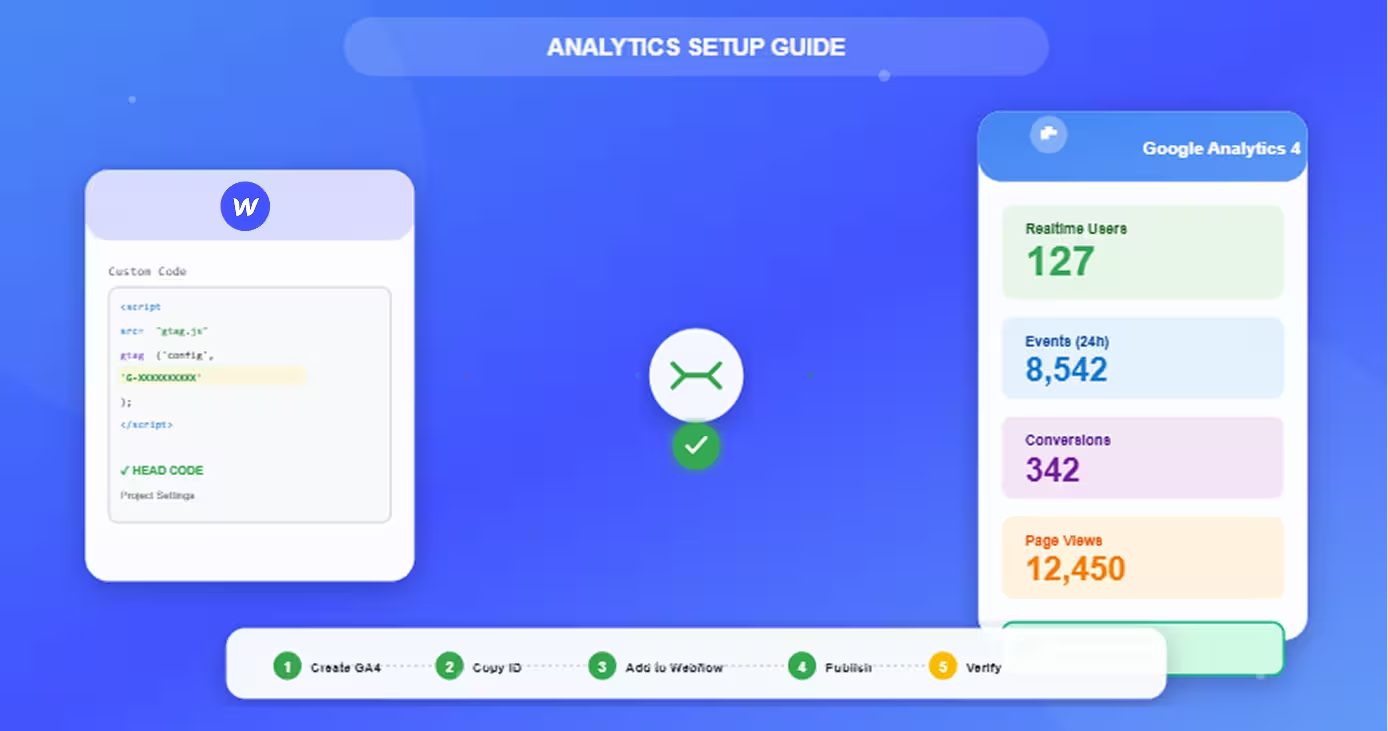
This comprehensive guide walks through every step to set up Google Analytics 4 properly in Webflow—from creating your property to configuring conversions, enhanced measurement to troubleshooting common issues. Whether launching a new Webflow site or fixing existing tracking, you'll learn the complete setup process that ensures accurate, actionable data.
Expected outcome: Complete GA4 setup in 30-60 minutes; verified data flowing within 24 hours; conversion tracking active within 48 hours.
Understanding GA4 for Webflow
Google Analytics 4 is the current analytics platform—understanding the basics ensures proper Webflow implementation.
What is Google Analytics 4
GA4 is Google's event-based analytics platform that replaced Universal Analytics (which sunset July 2023).
Core characteristics:
- Event-based model: Every interaction is an event (page views, clicks, scrolls, form submissions)
- Unified cross-platform: Web and app data in single property
- Privacy-focused: Cookieless tracking options, compliant with GDPR/CCPA
- Machine learning powered: Predictive analytics and insights
- Free tier: No cost for most businesses (360 available for enterprise)
Key terminology:
- Property: Your website's analytics account
- Data stream: Specific platform (web, iOS, Android)
- Measurement ID: Unique identifier (format:
G-XXXXXXXXXX) - Events: User interactions tracked
- Conversions: Important events marked for business goals
Why It's Essential for Webflow
GA4 provides insights impossible to gather without proper tracking.
What you learn from GA4:
- Traffic sources: Which channels drive visitors (organic, paid, social, direct)
- User behavior: Pages visited, time on site, navigation paths
- Conversion performance: Which pages/content generate leads or sales
- Audience insights: Demographics, interests, devices, locations
- Content effectiveness: Top-performing blog posts, landing pages, resources
Webflow-specific advantages:
- No database access needed: Unlike WordPress, can't access server logs directly
- Campaign attribution: Know which marketing efforts work
- Performance data: Correlate page speed with engagement
- Form optimization: See which forms convert best
- Ecommerce insights: Track product performance, cart abandonment
Key Differences from Universal Analytics
If migrating from UA, understand the paradigm shift.
Universal Analytics (sunset July 1, 2023):
- Session-based model
- Page views primary metric
- Goals and ecommerce separate
- Limited cross-device tracking
- Manual configuration heavy
Google Analytics 4:
- Event-based model (everything is an event)
- Engagement metrics prioritized
- Unified conversions (events marked as important)
- Automatic cross-device via Google signals
- Enhanced measurement built-in
Migration implications:
- Historical UA data remains accessible (read-only)
- No automatic data migration to GA4
- Must run both simultaneously for comparison
- Different interface and reporting
- Event naming conventions differ
Why it matters for Webflow: GA4's automatic event tracking (Enhanced Measurement) captures form submissions, file downloads, and video engagement without custom code—perfect for Webflow's no-code philosophy.
Setting Up GA4 in Webflow
Step-by-step process to install Google Analytics 4 tracking on your Webflow site.
Creating Your GA4 Property
Start at Google Analytics (analytics.google.com).
Setup process:
Step 1: Create account (if needed)
- Visit analytics.google.com
- Click "Start measuring"
- Account name: Your company name
- Account settings: Configure sharing options
Step 2: Create property
- Property name: Your website name
- Time zone: Your primary business location
- Currency: Your business currency
- Click "Next"
Step 3: Business details
- Industry category: Select applicable
- Business size: Choose your range
- Intended use: Select primary goals
- Click "Create"
Step 4: Accept terms
- Review Google Analytics Terms of Service
- Accept for your region
- Click "Accept"
Result: GA4 property created, ready for data stream
Getting Your Measurement ID
Configure web data stream to get tracking code.
Process:
Step 1: Add data stream
- Platform: Select "Web"
- Website URL: Enter your Webflow domain (e.g.,
yoursite.com) - Stream name: Your site name (optional)
- Enhanced measurement: Leave ON (recommended)
- Click "Create stream"
Step 2: Copy Measurement ID
- Look for Measurement ID at top right
- Format:
G-XXXXXXXXXX(G- followed by 10 characters) - Click copy icon or note it down
- You'll need this for Webflow
Step 3: View tag instructions (reference)
- Click "View tag instructions"
- See implementation options
- Note: We'll use "Install manually" method for Webflow
Important: Don't close this tab—you'll need the Measurement ID in next step.
Adding Tracking Code to Webflow
Two methods: simple code paste or Google Tag Manager.
Method 1: Direct code installation (recommended for most):
Step 1: Get tracking code
- In GA4 data stream, click "View tag instructions"
- Select "Install manually"
- Copy the entire code snippet provided:
html
<!-- Google tag (gtag.js) -->
<script async src="https://www.googletagmanager.com/gtag/js?id=G-XXXXXXXXXX"></script>
<script>
  window.dataLayer = window.dataLayer || [];
  function gtag(){dataLayer.push(arguments);}
  gtag('js', new Date());
  gtag('config', 'G-XXXXXXXXXX');
</script>
Step 2: Add to Webflow
- Open Webflow Designer
- Navigate to Project Settings (gear icon)
- Go to "Custom Code" tab
- Paste code into "Head Code" section
- Critical: Must be in Head, not Footer
- Click "Save Changes"
Step 3: Publish
- Publish your Webflow site
- Changes must be published to go live
- Choose "Publish to selected domains"
Method 2: Using Measurement ID only (alternative):
If you prefer simpler code:
html
<script async src="https://www.googletagmanager.com/gtag/js?id=G-XXXXXXXXXX"></script>
<script>
  window.dataLayer = window.dataLayer || [];
  function gtag(){dataLayer.push(arguments);}
  gtag('js', new Date());
  gtag('config', 'G-XXXXXXXXXX');
</script>
Replace G-XXXXXXXXXX with your actual Measurement ID.
Site-Wide vs Page-Specific Tracking
Where to add tracking code determines coverage.
Site-wide tracking (recommended):
- Location: Project Settings > Custom Code > Head Code
- Coverage: All pages automatically
- Use case: Standard implementation for entire site
- Advantage: Set once, tracks everything
Page-specific tracking (rare use cases):
- Location: Page Settings > Custom Code > Head Code
- Coverage: Individual page only
- Use case: Testing, specific landing pages, microsites
- Disadvantage: Must add to each page individually
Best practice: Use site-wide tracking unless you have specific reasons for page-level.
Verification and Testing
Confirm tracking works before relying on data.
Real-time verification (immediate):
Step 1: Open Realtime report
- GA4 Property > Reports > Realtime
- Shows activity from last 30 minutes
Step 2: Visit your website
- Open your Webflow site in new tab
- Navigate between 2-3 pages
- Click links, interact with content
Step 3: Check Realtime report
- Refresh GA4 Realtime report
- Look for active user (should show "1")
- See your page views appear
- Confirm events tracking (page_view, scroll, etc.)
Google Tag Assistant (Chrome extension):
Step 1: Install extension
- Chrome Web Store: "Tag Assistant Legacy"
- Add to Chrome
Step 2: Test your site
- Visit your Webflow site
- Click extension icon
- Verify GA4 tag detected and firing
- Check for errors (should be green checkmark)
Common verification issues:
- No data appearing: Check tracking code placement (must be in Head)
- Tag not detected: Ensure site published after adding code
- Errors shown: Verify Measurement ID correct (G-XXXXXXXXXX format)
Configuring Enhanced Measurement
Automatic event tracking without custom code—leverage GA4's built-in capabilities.
What Enhanced Measurement Tracks
GA4 automatically tracks common interactions when enabled.
Automatic events:
- Page views: Every page load
- Scrolls: User scrolls 90% of page
- Outbound clicks: Clicks to external sites
- Site search: Internal search usage
- Video engagement: Play, progress, complete (YouTube, Vimeo)
- File downloads: PDFs, DOCX, XLSX, etc.
- Form interactions: Form starts and submissions
Why it's powerful: Captures valuable engagement data without coding—perfect for Webflow's no-code approach.
Enabling Automatic Events
Enhanced Measurement is enabled by default—verify settings.
Check configuration:
Step 1: Access settings
- GA4 Property > Admin
- Data Streams > Your web stream
- Scroll to "Enhanced measurement"
Step 2: Verify enabled
- Toggle should be ON (blue)
- Click gear icon to see details
Step 3: Customize if needed
- Check which events to track
- Recommended: Keep all enabled
- Exception: Disable if causing issues
Default enabled events:
- ✅ Page views
- ✅ Scrolls
- ✅ Outbound clicks
- ✅ Site search
- ✅ Form interactions
- ✅ Video engagement
- ✅ File downloads
When to disable specific events:
- Too much data (high-traffic sites)
- Irrelevant tracking (no videos = disable video tracking)
- Custom implementation preferred
Custom Event Tracking
Track Webflow-specific interactions beyond automatic events.
Use cases for custom events:
- Specific button clicks (CTA conversions)
- Form submissions on thank-you pages
- Product adds to cart (Webflow Ecommerce)
- Custom user interactions
Implementation options:
Option 1: Via Google Tag Manager (recommended for complex tracking):
- Set up GTM container
- Create custom event tags
- Configure triggers
- More flexible than direct code
Option 2: Via custom code (simple events):
javascript
// Example: Track specific button click
document.getElementById('cta-button').addEventListener('click', function() {
  gtag('event', 'cta_click', {
    'button_location': 'homepage_hero',
    'button_text': 'Start Free Trial'
  });
});
Add to Webflow: Project Settings > Custom Code > Footer Code (before </body>)
Option 3: Via GA4 interface (event creation):
- GA4 > Configure > Events
- Create event > Set conditions
- Match existing events with modifications
Form Tracking Setup
Ensure Webflow form submissions track correctly.
Automatic form tracking (Enhanced Measurement):
- Captures
form_start(user begins filling form) - Captures
form_submit(user submits form) - Works for Webflow native forms
Verify form tracking:
Step 1: Submit test form
- Fill out and submit a form on your site
- Use real email for testing
Step 2: Check DebugView
- GA4 > Configure > DebugView
- Enable debug mode (browser extension or parameter)
- See
form_submitevent appear
Step 3: Mark as conversion (if applicable)
- GA4 > Configure > Events
- Find
form_submit - Toggle "Mark as conversion"
Advanced: Thank-you page tracking (more reliable):
Create custom event for thank-you page views:
- GA4 > Configure > Events > Create event
- Event name:
form_submission_confirmed - Conditions:
page_locationcontains/thank-you - Mark as conversion
Ecommerce Tracking Basics
For Webflow Ecommerce sites, track transactions and revenue.
Automatic ecommerce events (Webflow Ecommerce):
view_item: Product page viewedadd_to_cart: Product added to cartbegin_checkout: Checkout startedpurchase: Transaction completed
Setup requirements:
- Webflow Ecommerce plan active
- GA4 tracking code installed
- Enhanced Ecommerce enabled in GA4
Enabling enhanced ecommerce:
- GA4 > Admin > Data Streams
- Your web stream > Configure tag settings
- Show advanced settings > Ecommerce > Toggle ON
Verification:
- Complete test purchase
- GA4 > Reports > Monetization > Ecommerce purchases
- Verify transaction appears within 24 hours
Setting Up Conversions
Mark important events as conversions to track business goals.
Identifying Conversion Events
Determine which actions matter for your business.
Common B2B conversions:
- Form submissions (
form_submit) - Demo requests (custom event)
- Whitepaper downloads (
file_download) - Pricing page views (
page_view+ URL) - Free trial signups (custom event)
Common ecommerce conversions:
- Purchases (
purchase) - automatic conversion - Add to cart (
add_to_cart) - Begin checkout (
begin_checkout) - Newsletter signups (
sign_up)
Best practices:
- Limit to 30 conversions max (GA4 limit)
- Focus on business-critical actions
- Include both macro (purchase) and micro (email signup) conversions
Marking Events as Conversions
Simple toggle in GA4 interface.
Process:
Step 1: Navigate to Conversions
- GA4 Property > Configure > Conversions
- Or Configure > Events (toggle from events list)
Step 2: Mark existing events
- Find event in list (e.g.,
form_submit) - Toggle "Mark as conversion"
- Confirm action
Step 3: Create conversion event (if needed)
- Click "Create conversion event"
- Event name: Type exact event name
- Click "Create"
- Event will be marked as conversion when it occurs
Verification:
- Trigger conversion action on your site
- Check GA4 > Reports > Realtime > Conversions
- Should appear within minutes
Goal Value Assignment
Assign monetary value to conversions for ROI tracking.
Why assign values:
- Calculate marketing ROI
- Compare conversion quality
- Optimize budget allocation
- Measure campaign effectiveness
Value assignment methods:
Method 1: Via event parameters (recommended):
javascript
gtag('event', 'form_submit', {
  'value': 100,  // $100 estimated lead value
  'currency': 'USD'
});
Method 2: Via GA4 interface (static):
- GA4 > Configure > Events
- Find event > Modify event
- Add
valueparameter - Set static value (applies to all)
Value calculation examples:
Lead form (B2B):
- Average customer value: $10,000
- Close rate from form: 10%
- Form value: $10,000 × 0.10 = $1,000
Newsletter signup:
- Lower intent = lower value
- Perhaps 10-20% of lead value
- Newsletter value: $100-200
Purchase (Ecommerce):
- Value equals transaction amount
- Automatically tracked with Webflow Ecommerce
Testing Conversions
Verify conversions track before relying on data.
Testing checklist:
1. Real-time test:
- GA4 > Reports > Realtime > Conversions
- Perform conversion action
- Check conversion appears (within 60 seconds)
2. DebugView test:
- GA4 > Configure > DebugView
- Enable debug mode
- Trigger conversion
- Verify event details and parameters
3. Historical test (after 24-48 hours):
- GA4 > Reports > Engagement > Conversions
- Verify conversion counts
- Check values if assigned
Common issues:
- Conversion not appearing: Check event marked as conversion
- Wrong values: Verify parameter passed correctly
- Duplicates: Check for double-tracking (multiple codes)
Advanced Tracking Options
Beyond basic setup—enhance data collection and insights.
Google Tag Manager Integration
Centralized tag management for complex tracking needs.
Why use GTM with Webflow:
- Manage multiple tags (GA4, Facebook Pixel, LinkedIn) in one place
- Add tracking without editing Webflow code
- Version control for tag changes
- Advanced triggers and variables
- Easier team collaboration
Setup process:
Step 1: Create GTM account
- Visit tagmanager.google.com
- Create account and container
- Get container code
Step 2: Install GTM in Webflow
- Copy GTM code (two parts: head and body)
- Webflow > Project Settings > Custom Code
- Paste head code in Head Code section
- Paste body code in Footer Code section (top)
- Publish site
Step 3: Add GA4 tag in GTM
- GTM > Tags > New
- Tag type: Google Analytics: GA4 Configuration
- Measurement ID: Your G-XXXXXXXXXX
- Trigger: All Pages
- Save and publish container
Advantage: Manage all tracking through GTM instead of Webflow custom code.
Custom Dimensions and Metrics
Add business-specific data to GA4 reports.
Use cases:
- User type (customer, trial, free)
- Subscription tier (Basic, Pro, Enterprise)
- Content category (blog topic)
- Author name (for content sites)
Setup:
Step 1: Create custom dimension
- GA4 > Configure > Custom definitions
- Create custom dimensions
- Dimension name: e.g., "User Type"
- Scope: User, Event, or Item
- Event parameter: user_type
Step 2: Pass parameter with events:
javascript
gtag('config', 'G-XXXXXXXXXX', {
  'user_type': 'enterprise'
});
Step 3: Use in reports
- GA4 > Explore > Create exploration
- Add custom dimension to analysis
Cross-Domain Tracking
Track users across multiple domains as single session.
When needed:
- Main site:
yoursite.com - Blog subdomain:
blog.yoursite.com - Store:
store.yoursite.com - Or separate checkout domain
Setup:
Step 1: Configure in GA4
- GA4 > Admin > Data Streams
- Your stream > Configure tag settings
- Configure your domains
- List all domains to track together
Step 2: Update tracking code:
javascript
gtag('config', 'G-XXXXXXXXXX', {
  'linker': {
    'domains': ['yoursite.com', 'blog.yoursite.com', 'store.yoursite.com']
  }
});
Step 3: Verify
- Navigate between domains
- Check same Client ID maintained (Realtime report)
User ID Tracking
Connect logged-in user sessions across devices.
Benefits:
- Track user lifetime value
- Cross-device journey analysis
- Returning user identification
Implementation:
javascript
gtag('config', 'G-XXXXXXXXXX', {
  'user_id': 'USER_12345'  // Unique user identifier
});
Requirements:
- User consent for tracking
- Anonymized IDs (no PII like email)
- Privacy policy disclosure
Troubleshooting Common Issues
Quick fixes for typical GA4 + Webflow problems.
Data Not Appearing
Most common issue—usually placement or publication.
Checklist:
- ✅ Code in Head Code section (not Footer)
- ✅ Site published after adding code
- ✅ Correct Measurement ID (G-XXXXXXXXXX format)
- ✅ No JavaScript errors (check browser console)
- ✅ Waited 24-48 hours (full data processing time)
Immediate tests:
- Check Realtime report (should show within 60 seconds)
- Use Tag Assistant (verify tag firing)
- View page source (search for your Measurement ID)
Duplicate Tracking
Seeing 2× traffic—double-coded.
Causes:
- Code in both Project Settings AND Page Settings
- Code in both Head AND Footer
- GTM AND direct code both present
- Old UA code still active
Fix:
- Remove duplicate instances
- Keep only one implementation method
- Verify with Tag Assistant (should show one tag)
Form Submissions Not Tracking
Enhanced Measurement or custom tracking issues.
Troubleshooting:
Check Enhanced Measurement enabled:
- GA4 > Admin > Data Streams > Enhanced measurement ON
Verify Webflow native forms:
- Enhanced Measurement works with Webflow forms
- Third-party forms (Typeform, Jotform) need custom tracking
Test in DebugView:
- Enable debug mode
- Submit form
- Look for
form_submitevent - Check parameters included
Alternative: Thank-you page tracking:
- More reliable than form submission events
- Create event: page_view on /thank-you URL
- Mark as conversion
Conclusion
Proper GA4 setup in Webflow is a 30-60 minute investment that pays dividends through actionable data.
Setup checklist recap:
1. Create GA4 property (10 minutes)
- Create account and property
- Add web data stream
- Copy Measurement ID
2. Install in Webflow (5 minutes)
- Paste tracking code in Head Code
- Publish site
- Verify in Realtime
3. Configure Enhanced Measurement (5 minutes)
- Verify enabled
- Check automatic events
- Customize if needed
4. Set up conversions (10 minutes)
- Identify key events
- Mark as conversions
- Assign values
- Test in Realtime
5. Advanced configuration (20-30 minutes, optional)
- GTM integration
- Custom dimensions
- Cross-domain tracking
- User ID tracking
Next steps:
Week 1: Monitor and verify
- Check Realtime daily
- Verify conversions tracking
- Test from different devices
- Compare to Webflow analytics
Week 2-4: Baseline establishment
- Let data accumulate
- Build baseline reports
- Identify top pages/sources
- Note conversion patterns
Month 2+: Optimization
- Identify underperforming pages
- Test improvements
- Scale what works
- Continuous refinement
Monitoring recommendations:
- Weekly: Check Realtime for issues
- Monthly: Review key metrics (traffic, conversions, sources)
- Quarterly: Deep-dive analysis, strategy adjustments
The payoff: Companies with proper analytics make better decisions, eliminate wasted spend, and systematically improve performance. Your first data-driven optimization likely saves more than the setup time investment.
Start today—proper tracking is the foundation of growth.
Frequently Asked Questions
Do I need both Google Analytics 4 and Universal Analytics for my Webflow site?
No—Universal Analytics sunset July 1, 2023 and no longer collects data. Use only GA4.
Timeline context:
July 1, 2023: Universal Analytics stopped processing new data
- Existing UA properties became read-only
- Historical data remains accessible
- No new data collection
July 1, 2024: UA data scheduled for deletion
- Google may delete historical UA data
- Export important reports before deletion
- GA4 is now the only option
Current situation (2024+):
- GA4 only: All new implementations
- No UA needed: Don't add old UA code
- Historical data: Access old UA for past data only
Migration considerations:
If you had UA running:
- Historical data remains in old UA property
- Can compare year-over-year with caution
- Different metrics make exact comparison difficult
- Export critical historical reports
If starting fresh:
- Skip UA entirely
- Install only GA4
- Build baseline from day one
Common confusion:
- "Should I run both?" → No, UA doesn't collect new data
- "Can I migrate data?" → No automatic migration
- "Will I lose historical data?" → UA data stays in UA property (read-only)
Best practice: Focus 100% on GA4. If you need historical comparison, access old UA property separately, but all new tracking should be GA4 only.
Can I use Google Tag Manager instead of adding code directly to Webflow?
Yes—GTM is an excellent alternative that many professionals prefer for Webflow sites.
GTM advantages for Webflow:
Centralized management:
- Manage all tags in one place (GA4, Facebook Pixel, LinkedIn Tag, etc.)
- No need to edit Webflow custom code for each new tag
- Version control (revert to previous configurations)
- Preview and debug before publishing
Marketing team autonomy:
- Marketing can add/edit tracking without touching Webflow
- No developer needed for tag changes
- Faster implementation of new tracking
Advanced capabilities:
- Complex triggers (scroll depth, timer-based, click combinations)
- Data layer variables
- Custom JavaScript variables
- Event tracking without code
Setup process:
Step 1: Remove direct GA4 code (if exists)
- Webflow > Project Settings > Custom Code
- Remove any existing gtag.js code
- Publish
Step 2: Create GTM account
- Visit tagmanager.google.com
- Create account and container
- Container type: Web
Step 3: Install GTM in Webflow
- Copy GTM code (two snippets provided)
- Head code: Paste in Webflow Project Settings > Custom Code > Head Code
- Body code: Paste in Footer Code (beginning, not end)
- Publish Webflow site
Step 4: Add GA4 tag in GTM
- GTM workspace > Tags > New
- Tag Configuration > Google Analytics: GA4 Configuration
- Measurement ID: Your G-XXXXXXXXXX
- Triggering: All Pages
- Save
Step 5: Publish GTM container
- Preview mode first (test tags fire correctly)
- Submit > Publish
- Verify in GA4 Realtime
When to use GTM vs direct code:
Use GTM if:
- Managing multiple tracking tools (ads pixels, heatmaps, etc.)
- Marketing team needs tag management autonomy
- Planning complex event tracking
- Want version control and testing capability
Use direct code if:
- Simple GA4-only setup
- Small site with minimal tracking needs
- Prefer simplicity over flexibility
- No team members need tag access
Both work perfectly fine—GTM adds power and flexibility at cost of slight additional complexity. For most businesses, GTM is worth it, but direct code is simpler for basic needs.
Important: Choose one method (GTM OR direct code), not both. Running both creates duplicate tracking.
How long does it take for data to appear in Google Analytics 4 after setup?
Real-time data appears in 0-60 seconds; full reporting data processes within 24-48 hours.
Detailed timeline:
Immediate (0-60 seconds):
- Realtime report: Shows current visitors
- View at: GA4 > Reports > Realtime
- Displays: Last 30 minutes of activity
- Use for: Immediate verification, live monitoring
What appears in Realtime:
- Active users count
- Page views and screens
- Events (all automatic and custom)
- Conversions (if events marked)
- Traffic sources
- Geographic location
Testing workflow:
- Add tracking code to Webflow
- Publish site
- Open GA4 Realtime report
- Visit your website in another tab
- Within 60 seconds: See yourself as active user
Same day (2-6 hours):
- DebugView: Detailed event inspection
- View at: GA4 > Configure > DebugView
- Requires: Debug mode enabled
- Shows: Full event parameters, user properties
24 hours:
- Standard reports: Most data appears
- Reports include:
- Traffic acquisition
- Engagement reports
- User attributes
- Event counts
- Data fully processed and aggregated
48 hours (maximum):
- Complete processing: All data fully processed
- Includes:
- Conversions in reports
- E-commerce data
- Custom dimensions
- All metrics complete
Why the delay?
Data processing requirements:
- Aggregate millions of events
- Apply filters and de-duplication
- Calculate user-level metrics
- Remove spam and bot traffic
- Process conversions and attribution
What you can do while waiting:
Hour 1: Immediate verification
- Use Realtime report
- Confirm tracking code firing
- Test events triggering
- Verify Measurement ID correct
Day 1: Initial review
- Check standard reports appearing
- Verify data makes sense
- Test conversions in Realtime
- Review automatic events
Day 2: Full verification
- Review all reports
- Confirm conversion counts
- Check ecommerce data (if applicable)
- Verify no missing data
If data doesn't appear:
After 5 minutes (Realtime):
- Check code placement (must be in Head)
- Verify site published
- Check browser console for errors
- Test with Tag Assistant
After 24 hours (Reports):
- Verify Measurement ID correct
- Check for JavaScript errors blocking tracking
- Confirm no adblockers interfering
- Review DebugView for events
After 48 hours (Still no data):
- Recreate data stream with new Measurement ID
- Contact GA4 support
- Check Webflow site isn't password-protected
Pro tip: Set up tracking 2-3 days before campaign launch to ensure everything works correctly and you don't miss early data.
What's the difference between GA4 and Webflow's built-in analytics?
GA4 provides comprehensive analytics; Webflow analytics offers basic stats—both are useful for different purposes.
Webflow Analytics (included with sites):
What it tracks:
- Page views
- Unique visitors
- Top pages
- Referring sites
- Traffic sources (basic)
Limitations:
- Basic metrics only (no events, conversions, ecommerce detail)
- Limited historical data (typically 30-90 days)
- No custom segments or advanced filtering
- No user-level journey tracking
- No integration with other tools (ads platforms)
Advantages:
- Built-in (no setup required)
- Simple interface (easy to understand)
- Quick snapshot of traffic
- Webflow dashboard access
Best used for: Quick traffic checks, basic performance monitoring, non-technical team members.
Google Analytics 4 (free, requires setup):
What it tracks:
- Everything Webflow tracks PLUS:
- Detailed user behavior (events, interactions)
- Conversion tracking and attribution
- E-commerce transactions and revenue
- User demographics and interests
- Device and technology details
- Complete user journeys and paths
- Campaign performance and ROI
Advantages:
- Industry-standard platform
- Unlimited historical data retention
- Advanced segmentation and filtering
- Machine learning insights
- Integration with Google Ads, Search Console
- Custom reports and explorations
- Conversion tracking and goals
Limitations:
- Requires setup and configuration
- Steeper learning curve
- More complex interface
- Privacy compliance considerations
Best used for: Comprehensive analysis, conversion optimization, marketing attribution, business decisions.
Direct comparison:
FeatureWebflow AnalyticsGoogle Analytics 4Page views✅ Yes✅ YesUnique visitors✅ Yes✅ Yes (Users)Traffic sources✅ Basic✅ DetailedEvents tracking❌ No✅ YesConversions❌ No✅ YesEcommerce❌ Basic✅ DetailedUser journeys❌ No✅ YesDemographics❌ No✅ YesCustom reports❌ No✅ YesData retention⚠️ Limited✅ UnlimitedCampaign tracking❌ No✅ YesIntegration❌ Limited✅ Extensive
Recommendation: Use both:
Webflow Analytics for:
- Quick daily traffic checks
- Non-technical team visibility
- Basic performance monitoring
- Webflow dashboard convenience
Google Analytics 4 for:
- Strategic decision-making
- Conversion optimization
- Marketing ROI analysis
- Detailed user behavior insights
- Professional reporting
They complement each other: Webflow Analytics for quick checks; GA4 for deep analysis. Both are free, so there's no reason not to use both.
Setup priority: If you can only do one, set up GA4—it provides far more value for optimization and growth. Add Webflow Analytics as simple sanity check.