Introduction
Conversion tracking is the foundation of data-driven marketing—without it, you're flying blind, unable to measure ROI, optimize campaigns, or understand which efforts drive actual business results.
The challenge: Google Analytics 4 (GA4) represents a complete overhaul from Universal Analytics (UA). The event-based tracking model, different interface, and new terminology confuse many marketers attempting to set up conversion tracking for the first time.
The stakes: Businesses without proper conversion tracking waste 30-50% of marketing budget on channels and campaigns that don't convert. They optimize for vanity metrics (traffic, impressions) rather than revenue-driving actions (purchases, signups, qualified leads).
The opportunity: Proper GA4 conversion tracking reveals exactly which marketing activities generate customers. You'll know which campaigns to scale, which to pause, and where to invest next dollar for maximum return.
This comprehensive guide walks through everything you need to set up conversion tracking in GA4—from initial property setup to advanced ecommerce tracking. Whether you're tracking form submissions, purchases, demo requests, or downloads, you'll learn the step-by-step process to measure what matters.
Expected outcomes: Complete conversion tracking setup within 2-4 hours; accurate data flowing within 24 hours; actionable insights within first week of implementation.
Understanding GA4 Conversions
GA4 uses an event-based model—understanding events is essential to tracking conversions.
What Counts as a Conversion
In GA4, conversions are simply events you've marked as important to your business.
Any event can be a conversion:
- Form submissions (contact forms, newsletter signups)
- Button clicks (CTA buttons, add to cart)
- Page views (thank you pages, checkout confirmation)
- Purchases and transactions
- File downloads (PDFs, guides, software)
- Video engagement (watch 75%, completion)
- Scroll depth (reached 90% of page)
The key difference from UA: Universal Analytics had separate "Goals" (form submissions, page views) and "Ecommerce Transactions" (purchases). GA4 unifies everything as events—you simply mark important events as conversions.
Events vs Conversions in GA4
Understanding the relationship:
Events: Every user interaction is an event
- Page views (automatic)
- Scrolls (automatic)
- Clicks (automatic with enhanced measurement)
- Video plays (automatic with enhanced measurement)
- Form submissions (requires setup)
- Custom interactions (requires setup)
Conversions: Events you've designated as valuable
- Mark any event as conversion with one toggle
- Limited to 30 conversions per property
- Tracked in dedicated "Conversions" report
- Used in attribution and ROI calculations
Example flow:
- User clicks "Request Demo" button → Triggers
button_clickevent - You mark
button_clickas conversion - GA4 now tracks and reports this as conversion
- Data appears in Conversions report within 24 hours
Recommended vs Custom Events
GA4 provides automatic events and allows custom tracking.
Automatically collected events (no setup required):
page_view: Page loadsscroll: User scrolls 90% of pageclick: Outbound link clicksvideo_start,video_progress,video_complete: Video engagementfile_download: PDF, XLSX, DOCX, etc. downloadsform_start,form_submit: Form interactions
Enhanced measurement (enable in GA4 settings):
- Toggles on/off automatic event collection
- Recommended: Enable for most websites
- Captures engagement without custom code
Custom events (require manual setup):
- Specific button clicks (CTA conversions)
- Multi-step form completions
- Custom user interactions
- Calculated events (based on parameters)
Recommended events (Google's predefined):
purchase: Ecommerce transactionssign_up: Account creationlogin: User authenticationsearch: Site search usageadd_to_cart: Ecommerce cart adds
Best practice: Use recommended events when possible (consistent naming, better reporting); create custom events only when needed.
Key Conversion Types to Track
Prioritize conversions based on business model.
Lead generation businesses:
- Form submissions (contact, demo request, quote)
- Phone clicks (mobile click-to-call)
- Chat initiations
- Content downloads (whitepapers, guides)
- Email subscriptions
Ecommerce businesses:
- Purchases (primary conversion)
- Add to cart
- Begin checkout
- Newsletter signups (micro-conversion)
- Wishlist additions
SaaS businesses:
- Free trial signups
- Account creation
- Demo requests
- Pricing page views
- Feature usage (for product analytics)
Content/media businesses:
- Newsletter subscriptions
- Content consumption (video views, article reads)
- Social shares
- Comment submissions
- Premium upgrades
Setting Up Your GA4 Property
Prerequisite steps before tracking conversions.
Prerequisites and Requirements
What you need before starting:
Google Analytics 4 property:
- Create property at analytics.google.com
- Follow setup wizard
- Select industry and business size
- Enable data collection
Website access:
- Ability to edit website HTML (add tracking code)
- Or access to Google Tag Manager
- Administrator access to verify changes
Measurement ID:
- Looks like
G-XXXXXXXXXX - Found in GA4 Admin > Data Streams
- Used in tracking code
Installing GA4 Tracking Code
Two installation methods: direct code or Google Tag Manager.
Method 1: Direct code installation (simpler for small sites):
- Get tracking code:
- GA4 Property > Admin > Data Streams
- Click your web data stream
- View tag instructions > Install manually
- Copy provided code (looks like):
html
<!-- Google tag (gtag.js) -->
<script async src="https://www.googletagmanager.com/gtag/js?id=G-XXXXXXXXXX"></script>
<script>
  window.dataLayer = window.dataLayer || [];
  function gtag(){dataLayer.push(arguments);}
  gtag('js', new Date());
  gtag('config', 'G-XXXXXXXXXX');
</script>
- Paste in website
<head>section:- Before closing
</head>tag - On every page you want to track
- Save and publish changes
- Before closing
Method 2: Google Tag Manager installation (recommended for larger sites):
- Create GTM account at tagmanager.google.com
- Install GTM container code on website
- Add GA4 Configuration tag in GTM:
- Tags > New > GA4 Configuration
- Enter Measurement ID (
G-XXXXXXXXXX) - Trigger: All Pages
- Save and publish container
Advantage of GTM: Add conversion tracking without editing website code; manage all tags in one place; faster updates.
Verifying Installation
Confirm tracking code works before proceeding.
Real-time verification:
- GA4 > Reports > Realtime
- Open your website in browser
- Check Realtime report shows active user (you)
- Navigate between pages
- Confirm page views register in real-time
Google Tag Assistant (Chrome extension):
- Install Tag Assistant extension
- Open your website
- Click extension icon
- Verify GA4 tag firing correctly
- Check for errors or warnings
Debug mode (for GTM):
- GTM > Preview mode
- Open website in new tab
- GTM debugger shows tag firings
- Verify GA4 tag triggers on page load
Troubleshooting:
- Not seeing data? Check code placement (must be in
<head>) - Multiple properties firing? Check for duplicate codes
- Intermittent tracking? Check JavaScript errors in console
Data Stream Configuration
Configure settings for accurate tracking.
Enhanced measurement:
- GA4 > Admin > Data Streams > Your stream
- Toggle "Enhanced measurement" on
- Enables automatic event tracking (scrolls, clicks, videos, downloads, form interactions)
- Customize which events to track automatically
Data collection settings:
- Google signals: Enable for cross-device tracking
- User-ID: Configure if tracking logged-in users
- Internal traffic: Filter out office IP addresses
- Debug mode: Enable during setup, disable after launch
Creating Conversion Events
Mark events as conversions or create custom tracked events.
Marking Existing Events as Conversions
Easiest method: designate automatically tracked events as conversions.
Step-by-step process:
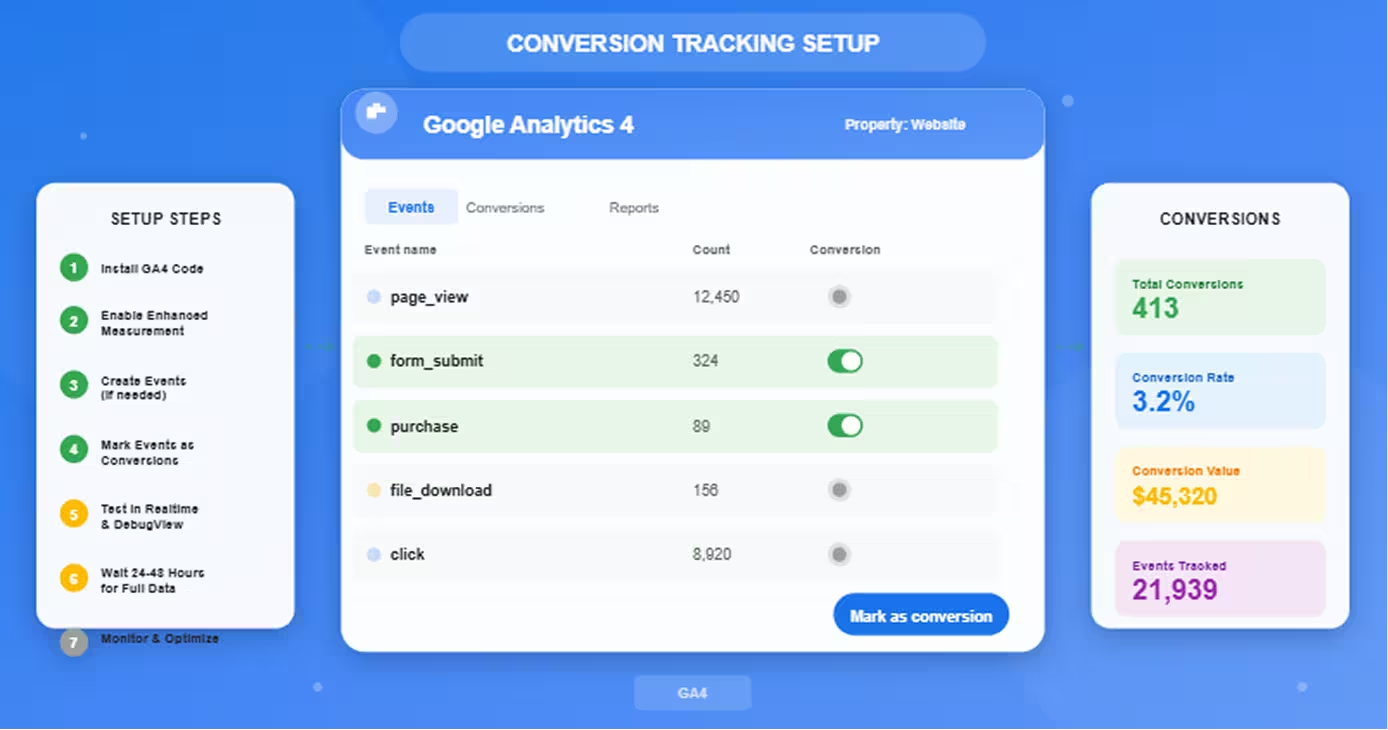
- Navigate to Events:
- GA4 > Configure > Events
- View list of all tracked events
- Identify conversion-worthy events:
form_submit: Contact form submissionsfile_download: Guide downloadsclick: Specific CTA clicks (requires filtering)page_view: Thank you page views
- Mark as conversion:
- Find event in list
- Toggle "Mark as conversion" switch
- Confirm in popup dialog
- Verify conversion tracking:
- GA4 > Configure > Conversions
- Confirm event appears in conversion list
- Wait 24 hours for data to populate
Best practices:
- Don't mark every event (limit: 30 conversions)
- Focus on business-critical actions
- Use descriptive event names
- Test thoroughly before marking as conversion
Creating Custom Events
For specific tracking needs not covered by automatic events.
Use cases:
- Specific button clicks (one CTA among many)
- Multi-step form completions (final step only)
- Calculated events (cart value thresholds)
- Custom user journeys
Method 1: Create event in GA4 interface (no code required):
- Navigate to Events:
- GA4 > Configure > Events
- Click "Create event"
- Define event parameters:
- Custom event name:
demo_request_submit - Matching conditions:
event_nameequalsform_submitpage_locationcontains/demo-request
- Parameter modifications (optional)
- Custom event name:
- Save and test:
- Event creation takes 24 hours to activate
- Submit test form to verify tracking
- Check Configure > Events for new event
Method 2: Custom event via Google Tag Manager (more flexible):
- Create variables (data layer variables for form fields)
- Create trigger (form submission on specific page)
- Create GA4 Event tag:
- Event name:
demo_request_submit - Event parameters: Add relevant data (form_name, page_path)
- Trigger: Created trigger
- Event name:
- Test in Preview mode
- Publish container
Method 3: Custom event via JavaScript (developers):
javascript
// Example: Track custom button click
document.getElementById('cta-button').addEventListener('click', function() {
  gtag('event', 'cta_click', {
    'button_text': 'Start Free Trial',
    'button_location': 'hero_section',
    'value': 1
  });
});
Event Parameters and Values
Add context to conversions with parameters.
Standard parameters:
value: Monetary value of conversion (use for ROI calculations)currency: Three-letter currency code (USD, EUR, GBP)transaction_id: Unique order identifier (prevents duplicate counting)
Custom parameters:
form_name: Which form was submittedbutton_location: Where on page CTA was clickedlead_source: Campaign or channel that drove conversionuser_type: New vs returning customer
Example with parameters:
javascript
gtag('event', 'generate_lead', {
  'value': 100,
  'currency': 'USD',
  'form_name': 'Contact Form',
  'lead_source': 'Paid Search'
});
Benefits of parameters:
- Segment conversion data (e.g., conversions by form type)
- Calculate accurate ROI (assign value to each conversion)
- Build custom reports (filter by parameter values)
- Improve attribution (understand conversion context)
Testing and Validation
Always verify conversions track correctly before relying on data.
Testing checklist:
1. Real-time testing:
- GA4 > Reports > Realtime
- Perform conversion action (submit form, click button)
- Check Conversions section in Realtime report
- Verify conversion appears within seconds
2. Debug mode testing (GTM):
- Enable Preview mode in GTM
- Trigger conversion on website
- GTM debugger shows event firing
- Verify event parameters correct
3. DebugView testing (GA4):
- GA4 > Configure > DebugView
- Enable debug mode on device
- Perform conversions
- See detailed event data in real-time
4. Historical data check:
- Wait 24-48 hours
- GA4 > Reports > Conversions
- Verify conversions appearing
- Check conversion counts reasonable
Common issues:
- Conversions not appearing: Check event name spelling, verify event firing in DebugView
- Duplicate conversions: Add
transaction_idparameter for deduplication - Wrong conversion values: Verify
valueparameter passed correctly
Common Conversion Events to Track
Standard conversions applicable to most businesses.
Form Submissions
Most common conversion for lead generation.
Setup approach:
Option 1: Automatic tracking (easiest):
- Enable Enhanced Measurement
- GA4 automatically tracks
form_submitevent - Mark
form_submitas conversion - Limitation: Tracks ALL forms (can't distinguish which)
Option 2: Specific form tracking (recommended):
- Create custom event for each form type
- Matching conditions:
form_submit+page_locationcontains/contact - Allows separate tracking: Contact form, demo request, quote request
- Mark each custom event as conversion
Adding value to form conversions:
javascript
gtag('event', 'form_submit', {
  'form_name': 'contact_form',
  'value': 50,  // Estimated lead value
  'currency': 'USD'
});
Button Clicks
Track specific CTA conversions.
Challenge: Enhanced Measurement tracks all clicks—need to isolate specific buttons.
Solution: Create custom event for specific button
GTM approach:
- Create Click trigger with conditions:
- Click Element matches CSS selector
#cta-button - Or Click Text equals "Start Free Trial"
- Click Element matches CSS selector
- Create GA4 Event tag:
- Event name:
cta_click - Trigger: Created click trigger
- Event name:
- Mark
cta_clickas conversion
Direct code approach:
javascript
document.getElementById('cta-button').addEventListener('click', function() {
  gtag('event', 'cta_conversion', {
    'button_text': this.innerText,
    'button_id': this.id
  });
});
Page Views (Thank You Pages)
Simple, reliable conversion tracking.
When to use: When user reaches confirmation page after conversion action (form submission, purchase, signup).
Setup:
- Create custom event
- Matching conditions:
event_nameequalspage_viewpage_locationcontains/thank-you
- Mark custom event as conversion
Advantages:
- Doesn't rely on form submission events
- Works even if JavaScript fails
- Easy to verify (just visit thank you page)
Best practices:
- Use unique thank you page URLs (
/contact-thank-you,/demo-thank-you) - Prevents false conversions from users refreshing page
- Add
transaction_idparameter if users might visit multiple times
Ecommerce Transactions
For online stores tracking purchases.
Required setup: Enhanced Ecommerce tracking
Standard ecommerce events:
add_to_cart: Product added to cartview_item: Product page viewedbegin_checkout: Checkout initiatedpurchase: Transaction completed (primary conversion)
Purchase event example:
javascript
gtag('event', 'purchase', {
  'transaction_id': 'T_12345',
  'value': 299.99,
  'currency': 'USD',
  'tax': 20.00,
  'shipping': 10.00,
  'items': [
    {
      'item_id': 'SKU_12345',
      'item_name': 'Premium Widget',
      'quantity': 1,
      'price': 269.99
    }
  ]
});
Automatic marking: purchase events automatically marked as conversions in GA4.
File Downloads
Track content engagement and lead magnets.
Automatic tracking:
- Enhanced Measurement tracks downloads automatically
- File types: PDF, XLSX, DOCX, TXT, CSV, etc.
- Event name:
file_download - Parameters:
file_name,link_url
Mark as conversion:
- GA4 > Configure > Events
- Find
file_download - Toggle "Mark as conversion"
Specific file tracking:Create custom event for high-value downloads:
- Matching conditions:
file_download+file_namecontainswhitepaper - Assign value to premium content downloads
Video Engagement
Measure content consumption depth.
Automatic video events (Enhanced Measurement):
video_start: Video begins playingvideo_progress: Reached 10%, 25%, 50%, 75%video_complete: Watched to end
Conversion recommendations:
- Mark
video_completeas conversion for engagement - Or create custom event:
video_progress+ 75% completion - Useful for video marketing, tutorials, product demos
Advanced Conversion Setup
Beyond basic tracking—enhance data quality and insights.
Enhanced Ecommerce Tracking
Comprehensive ecommerce conversion funnel.
Full ecommerce event sequence:
view_item_list: Category page viewedview_item: Product detail viewedadd_to_cart: Product addedbegin_checkout: Checkout startedadd_payment_info: Payment info enteredpurchase: Order completed
Implementation requires:
- Ecommerce platform integration
- Product data layer
- Developer resources for custom implementation
- Or Shopify/WooCommerce GA4 plugins
Benefits:
- Funnel visualization (identify drop-off points)
- Product performance reports
- Shopping behavior analysis
- Enhanced attribution
Cross-Domain Tracking
Track conversions across multiple domains.
Use case: When user journey spans domains:
- Main site:
yoursite.com - Checkout:
store.yoursite.com - Or landing pages:
pages.yoursite.com
Setup:
- Add all domains to GA4 property settings
- Configure cross-domain measurement
- Update tracking code with
linkerparameter:
javascript
gtag('config', 'G-XXXXXXXXXX', {
  'linker': {
    'domains': ['yoursite.com', 'store.yoursite.com']
  }
});
Verification: User sessions persist across domains (same client_id).
User ID Tracking
Connect conversions to specific logged-in users.
Benefits:
- Track user journey across devices
- Lifetime value analysis
- Returning user conversion attribution
- Personalization insights
Implementation:
- Pass
user_idwhen user logs in - Include in gtag config:
javascript
gtag('config', 'G-XXXXXXXXXX', {
  'user_id': 'USER_12345'
});
Privacy compliance: Anonymize user IDs (no email addresses or PII).
Custom Dimensions
Add business-specific context to conversions.
Examples:
- Customer segment (SMB, Enterprise)
- Subscription tier (Free, Pro, Enterprise)
- User role (Admin, Editor, Viewer)
- Lead source (Paid, Organic, Referral)
Setup:
- GA4 > Configure > Custom definitions
- Create custom dimension
- Pass dimension with events:
javascript
gtag('event', 'purchase', {
  'customer_segment': 'enterprise',
  'subscription_tier': 'pro'
});
Measuring and Reporting
View and analyze conversion data for insights.
Viewing Conversion Data
Primary conversion reports in GA4:
Conversions report:
- GA4 > Reports > Engagement > Conversions
- Shows all conversion events
- Metrics: Count, value, conversion rate
- Sortable by event name
Realtime conversions:
- GA4 > Reports > Realtime
- Conversions section shows live conversion activity
- Useful for testing and monitoring campaigns
Explorations:
- GA4 > Explore
- Build custom reports with conversion data
- Funnel exploration (visualize conversion paths)
- Path exploration (see user journeys to conversion)
Creating Custom Reports
Build reports tailored to your business needs.
Funnel exploration (visualize conversion drop-off):
- Explore > Funnel exploration
- Define steps: Page view → Add to cart → Checkout → Purchase
- See abandonment at each stage
- Identify optimization opportunities
Path exploration (understand conversion journeys):
- Explore > Path exploration
- Starting point: Conversion event
- See steps leading to conversion
- Identify common paths
Custom reports:
- Explore > Free form
- Dimensions: Campaign, Source/Medium, Landing Page
- Metrics: Conversions, Conversion rate, Value
- Segment by device, new vs returning, etc.
Setting Up Conversion Goals
In GA4, conversions replace UA "Goals"—but concept similar.
Best practices:
- Limit conversions to 30: Focus on most important
- Macro vs micro conversions:
- Macro: Purchase, signup, demo request
- Micro: Newsletter signup, video view, download
- Assign values: Estimate monetary value of each conversion type
- Primary conversion: Designate main business goal (usually purchase or lead)
Conversion value assignment:
- Purchase: Actual transaction amount (automatic)
- Lead form: Average customer value × close rate
- Newsletter signup: Engagement value (lower than direct leads)
- Demo request: High value (qualified lead)
Attribution Modeling
Understand which channels drive conversions.
Attribution models in GA4:
- Data-driven: ML-based, most accurate (requires sufficient data)
- Last click: All credit to final touchpoint
- First click: All credit to initial touchpoint
- Linear: Equal credit to all touchpoints
- Position-based: More credit to first and last touches
Viewing attribution:
- GA4 > Advertising > Attribution
- Model comparison tool
- See conversion credit by channel
Conversion paths:
- Multi-touch attribution
- See full journey: Organic search → Paid social → Email → Direct purchase
- Optimize entire funnel, not just last click
Conclusion
Proper GA4 conversion tracking transforms marketing from guesswork to data-driven optimization.
Setup checklist recap:
1. Foundation (30 minutes):
- Create GA4 property
- Install tracking code (direct or GTM)
- Enable Enhanced Measurement
- Verify data collection in Realtime
2. Core conversions (1 hour):
- Mark automatic events as conversions (form_submit, file_download)
- Create custom events for specific conversions
- Add event parameters (value, form_name)
- Test in DebugView and Realtime
3. Advanced setup (1-2 hours):
- Configure ecommerce tracking (if applicable)
- Set up cross-domain tracking (if needed)
- Create custom dimensions
- Build custom reports
Testing is critical:
- Don't assume tracking works—verify in Realtime
- Use DebugView for detailed event inspection
- Wait 24-48 hours for historical data
- Compare to previous analytics (if migrating from UA)
Next steps:
- Week 1: Monitor conversion data, verify accuracy
- Week 2: Create baseline reports, identify top-performing channels
- Month 1: Begin optimization based on conversion data
- Ongoing: Monthly reviews, continuous testing and improvement
The payoff: Businesses with accurate conversion tracking make better decisions, eliminate wasted ad spend, and scale what works. Your first optimized decision based on GA4 data likely pays for entire setup time investment.
Start tracking conversions today—your future marketing ROI depends on it.
Frequently Asked Questions
How long does it take for conversion data to appear in GA4?
Real-time conversions appear within seconds; full reporting data processes within 24-48 hours.
Detailed timeline:
Immediate (0-60 seconds):
- Realtime report: Conversions appear almost instantly
- View conversions in GA4 > Reports > Realtime
- Useful for testing and verification
- Shows last 30 minutes of activity
Same day (2-4 hours):
- DebugView: Detailed event data with parameters
- GA4 > Configure > DebugView
- Requires debug mode enabled
- Shows complete event structure
24 hours:
- Standard reports: Conversions appear in main reports
- GA4 > Reports > Engagement > Conversions
- Data fully processed and aggregated
- Historical comparisons available
48 hours maximum:
- Delayed data processing: Occasionally takes up to 48 hours
- High traffic sites may process faster
- Low traffic sites might take full 48 hours
- Google's data processing pipeline timing
Why the delay?
Data processing requirements:
- GA4 aggregates millions of events
- Applies attribution models
- Calculates user-level metrics
- Removes spam and bot traffic
- Processes conversions across devices/sessions
What you can do while waiting:
Immediate verification:
- Use Realtime report for instant feedback
- Test conversions yourself (submit form, click button)
- Check Realtime > Conversions section
- Verify event appears with correct name
24-hour verification:
- Return to GA4 next day
- Check Configure > Conversions
- Verify conversion event listed
- Navigate to Reports > Engagement > Conversions
- Confirm conversion count matches expectations
Troubleshooting if data doesn't appear:
After 24 hours, still no conversions:
- Check Configure > Events: Is event collecting data?
- Verify event marked as conversion (toggle on)
- Review DebugView: Are events firing correctly?
- Check tracking code installed on all pages
- Verify no JavaScript errors blocking gtag
Data appears but seems wrong:
- Compare Realtime count to historical count
- Check for duplicate tracking codes (inflates numbers)
- Verify conversion conditions correct (not too broad)
- Review event parameters (form_name, page_location)
Pro tip: Set up conversions 2-3 days before campaign launch to ensure data flows correctly and you don't miss early conversions.
Can I track conversions without Google Tag Manager?
Yes—you can track conversions with GA4 tracking code alone, though GTM offers significant advantages for complex tracking.
Direct GA4 tracking (no GTM):
What you CAN track without GTM:
- Automatic events (Enhanced Measurement):
- Page views
- Scrolls
- Outbound clicks
- Site search
- Video engagement
- File downloads
- Form interactions
- Basic custom events (requires adding JavaScript to website)
- Ecommerce events (if platform supports GA4 natively)
Setup process without GTM:
- Install GA4 tracking code in
<head> - Enable Enhanced Measurement
- Mark automatic events as conversions
- Add custom event code directly to website
Example—tracking custom button click without GTM:
html
<button id="demo-request" onclick="trackDemoRequest()">Request Demo</button>

<script>
function trackDemoRequest() {
  gtag('event', 'demo_request', {
    'value': 100,
    'currency': 'USD'
  });
}
</script>
When direct tracking works well:
- Small websites (5-10 pages)
- Simple conversion tracking needs
- Technical team can add JavaScript
- Few tracking requirements beyond basics
- Using platform with built-in GA4 (Shopify, Webflow)
Google Tag Manager advantages:
Why GTM is recommended:
1. No code changes needed:
- Add/edit conversions without touching website
- Faster implementation (no developer required)
- Update tracking in minutes vs. days
2. Advanced tracking capabilities:
- Complex triggers (scroll depth, timer-based, click combinations)
- Data layer variables
- Custom JavaScript variables
- Precise element targeting (CSS selectors)
3. Multiple tool management:
- Manage GA4, Facebook Pixel, LinkedIn Tag in one place
- Version control (revert to previous configurations)
- Preview mode for testing
- Built-in debugging
4. Professional features:
- Tag firing rules (exclude internal traffic)
- Workspace collaboration
- Template library
- Error detection
Comparison table:
FeatureDirect GA4With GTMPage view tracking✅ Automatic✅ AutomaticEnhanced Measurement✅ Built-in✅ Built-inCustom button clicks⚠️ Requires code✅ Visual setupForm submissions (specific)⚠️ Custom code✅ Easy configAdvanced triggers❌ Limited✅ ExtensiveMulti-tool management❌ Separate codes✅ UnifiedNo-code updates❌ Developer needed✅ Marketing-friendlyTesting/debugging⚠️ Basic✅ Robust
Recommendation:
Start with direct GA4 if:
- Very small site with simple needs
- Already comfortable with JavaScript
- Need only automatic event conversions
- Budget/time for GTM setup unavailable
Use GTM if:
- Tracking 5+ different conversion types
- Need to update tracking frequently
- Non-technical team managing analytics
- Planning to add more tools (ads pixels, heatmaps)
- Want robust testing/debugging capabilities
Migration path: Start with direct GA4 → migrate to GTM as needs grow. GTM can coexist with or replace existing GA4 code.
What's the difference between GA4 conversions and Universal Analytics goals?
GA4 conversions and UA goals serve the same purpose (tracking valuable actions) but use fundamentally different models.
Core philosophical differences:
Universal Analytics goals:
- Session-based tracking: Goals tied to sessions
- Limited scope: 20 goals per view, 25 views per property
- Separate systems: Goals vs Ecommerce transactions
- Fixed categories: Destination, Duration, Pages/Screens, Event
- Goal value: Set per goal (static)
GA4 conversions:
- Event-based tracking: Everything is an event
- Simpler model: Any event can be conversion
- Unified system: Purchases are events like form submissions
- Flexible approach: One model for all conversions
- Event value: Dynamic, passed with each event
Detailed comparison:
1. Creation and setup:
UA Goals:
- Admin > View > Goals > New Goal
- Choose template or custom
- Configure goal details (URL, duration, pages)
- Set value (optional)
- Save—applies prospectively only
GA4 Conversions:
- Mark existing event as conversion (one toggle)
- Or create custom event → mark as conversion
- Automatically becomes conversion across all reporting
- Retroactive application (data from when event started tracking)
2. Tracking mechanism:
UA Goals:
- Triggered by predefined conditions:
- Destination: Reaching URL (
/thank-you) - Duration: Session lasting >X minutes
- Pages per session: Viewing X pages
- Event: Specific event category/action/label
- Destination: Reaching URL (
- Once per session (goal can only complete once per session)
GA4 Conversions:
- Triggered by events (which are user interactions)
- Can occur multiple times per session
- More granular tracking
- Better for ecommerce (multiple purchases per session)
3. Limits and flexibility:
UA Goals:
- 20 goals per view
- 25 views per property
- Maximum 500 goals total per property
- Can't change goal type after creation
GA4 Conversions:
- 30 conversions per property
- Simpler limit structure
- Can mark/unmark events as conversions anytime
- More flexible iteration
4. Ecommerce handling:
UA:
- Separate Enhanced Ecommerce tracking
- Ecommerce transactions ≠ goals
- Two different report sections
- Different setup process
GA4:
purchaseevent is a conversion like any other- Unified event model
- Simpler conceptual model
- Same setup process for all conversion types
5. Reporting and attribution:
UA Goals:
- Goal completions report
- Goal value report
- Multi-Channel Funnels (separate tool)
- Attribution models in MCF only
GA4 Conversions:
- Conversions report (unified)
- Built-in attribution comparison
- Conversion paths in GA4 interface
- Data-driven attribution included
Migration considerations:
When migrating UA to GA4:
Not a 1:1 mapping:
- 20 UA goals ≠ 20 GA4 conversions necessarily
- Rethink what to track (opportunity to simplify)
- Eliminate redundant goals
- Focus on business-critical conversions
Common migration mistakes:
- Trying to recreate every UA goal exactly
- Not leveraging automatic events
- Missing ecommerce conversion setup
- Forgetting to mark events as conversions
Best practice migration approach:
- Audit UA goals: Which drive business decisions?
- Map to GA4 events: What events capture same actions?
- Prioritize: Pick 10-15 most important conversions
- Implement: Set up event tracking + mark conversions
- Validate: Run parallel (UA + GA4) for 1-2 months
- Compare: Ensure conversion counts align reasonably
Example mapping:
UA GoalGoal TypeGA4 ConversionEvent TypeContact FormDestination (/thank-you)form_submit + page conditionCustom eventNewsletter SignupEventsign_up (recommended event)Recommended5+ Page ViewsPages/ScreensNot needed (session engagement sufficient)—PurchaseEcommerce transactionpurchaseRecommended3+ MinutesDurationNot recommended (engagement metrics better)—
The shift: GA4 encourages tracking user actions (events) rather than artificial milestones (page count, time). Focus on what users do not how long they stay.
How do I assign monetary value to non-ecommerce conversions?
Assign conversion value by estimating revenue potential of each conversion type—here's the systematic approach.
Why assign value to conversions:
- Calculate true ROI: Revenue per dollar spent on ads
- Optimize campaigns: Focus budget on high-value conversions
- Compare conversion types: Understand relative worth
- Attribution insights: Value credit across touchpoints
Value assignment framework:
Method 1: Customer Lifetime Value (CLV) approach (most accurate):
Formula:
Conversion Value = (Average Customer Value × Close Rate)
Example—SaaS demo request:
- Average customer value: $10,000/year
- Demo-to-customer close rate: 20%
- Demo request value: $10,000 × 0.20 = $2,000
Step-by-step calculation:
- Determine average customer value:
- Annual subscription: $10,000
- Or total contract value: $30,000
- Or lifetime value: $50,000 (use most relevant)
- Calculate close rate for conversion type:
- Demos requested: 100
- Demos that became customers: 20
- Close rate: 20%
- Multiply: $10,000 × 20% = $2,000 per demo
Method 2: Lead scoring approach (for multiple conversion types):
Relative value assignment:
- Tier 1 (High intent): 100% of CLV × close rate
- Demo requests
- Free trial signups
- Pricing page inquiries
- Tier 2 (Medium intent): 30-50% of Tier 1 value
- Whitepaper downloads
- Webinar registrations
- Email subscriptions
- Tier 3 (Low intent): 10-20% of Tier 1 value
- Blog subscriptions
- Social follows
- Generic content downloads
Example value structure:
- Demo request: $2,000 (Tier 1)
- Whitepaper download: $800 (40% of Tier 1)
- Newsletter signup: $300 (15% of Tier 1)
Method 3: Historical data approach (requires existing data):
Backward calculation:
- Track conversions for 3-6 months
- Measure actual revenue from each conversion type
- Calculate average:
- 100 demo requests → 20 customers → $200,000 revenue
- Average value: $200,000 ÷ 100 = $2,000 per demo
Advantages:
- Based on real performance
- Accounts for sales cycle
- Adjusts for actual close rates
Implementing value in GA4:
Method 1: Event parameter (recommended):
javascript
gtag('event', 'demo_request', {
  'value': 2000,
  'currency': 'USD'
});
Pass value when event fires—most flexible approach.
Method 2: GA4 interface (for existing events):
- GA4 > Configure > Events
- Find event → Click edit
- Modify event → Add/update
valueparameter - Set static value (e.g., 2000)
Best practices for value assignment:
1. Be conservative:
- Better to underestimate than overestimate
- Prevents inflated ROI claims
- Builds in margin for error
2. Update regularly:
- Review values quarterly
- Adjust based on actual close rates
- Account for changes in business (pricing, offer, market)
3. Currency consistency:
- Always include
currencyparameter - Use same currency across all conversions
- Enables accurate revenue reporting
4. Document assumptions:
- Write down calculation methodology
- Note data sources and dates
- Enables future team members to update
5. Segment when possible:
- Different values for different user types:
javascript
// Enterprise lead worth more than SMB lead
gtag('event', 'demo_request', {
  'value': userType === 'enterprise' ? 5000 : 2000,
  'currency': 'USD',
  'user_type': userType
});
Common value assignments by industry:
B2B SaaS:
- Free trial signup: $500-2,000
- Demo request: $1,000-5,000
- Whitepaper download: $100-500
- Webinar attendance: $200-800
B2C ecommerce (beyond purchases):
- Email signup: $5-15
- Wishlist add: $10-30
- Social follow: $2-5
- Cart abandonment recovery: $20-50
Lead generation services:
- Contact form: $50-300
- Phone call: $100-500
- Quote request: $200-1,000
- Chat initiation: $30-150
Content/media:
- Email subscription: $3-10
- Premium signup: $20-100
- Content consumption: $1-5
- Social share: $0.50-2
Validation check: Total conversion value should align with actual revenue over time. If you're tracking $100,000 in conversion value but only generating $50,000 in revenue, values are too high.