Introduction
Website localization goes beyond simple translation—it's the process of adapting your entire website experience for different languages, regions, and cultures. For businesses targeting international audiences, multi-language sites are essential for reaching customers in their native languages and increasing global conversions.
Webflow Localization is the platform's native solution for creating multilingual websites without complex workarounds or third-party services. Released as an add-on feature, it provides visual translation management, automatic locale switching, and SEO-optimized URL structures—all within Webflow's familiar interface.
Before Webflow Localization, creating multi-language sites required manual duplication of pages, external translation services, or custom code implementations. These approaches were time-consuming, difficult to maintain, and prone to inconsistencies. Webflow's native feature streamlines the entire process.
This comprehensive guide explains how to build multi-language sites with Webflow Localization—from understanding pricing and setup to translating content, localizing design elements, and optimizing for international SEO. Whether you're expanding into new markets or serving diverse audiences, you'll learn the complete workflow for creating professional multilingual websites that scale efficiently and maintain brand consistency across all locales.
Understanding Webflow Localization
Webflow Localization enables you to create and manage multiple language versions of your website directly in the Webflow Designer and Editor.
What Localization Includes
Comprehensive localization encompasses:
- Content translation: All text, headings, and copy
- Media localization: Language-specific images and videos
- URL localization: Clean, locale-specific URLs
- SEO metadata: Translated titles, descriptions, and hreflang tags
- Navigation adaptation: Locale-appropriate menus and links
- Cultural adaptation: Region-specific content and formatting
Webflow's Native Localization Feature
Key capabilities:
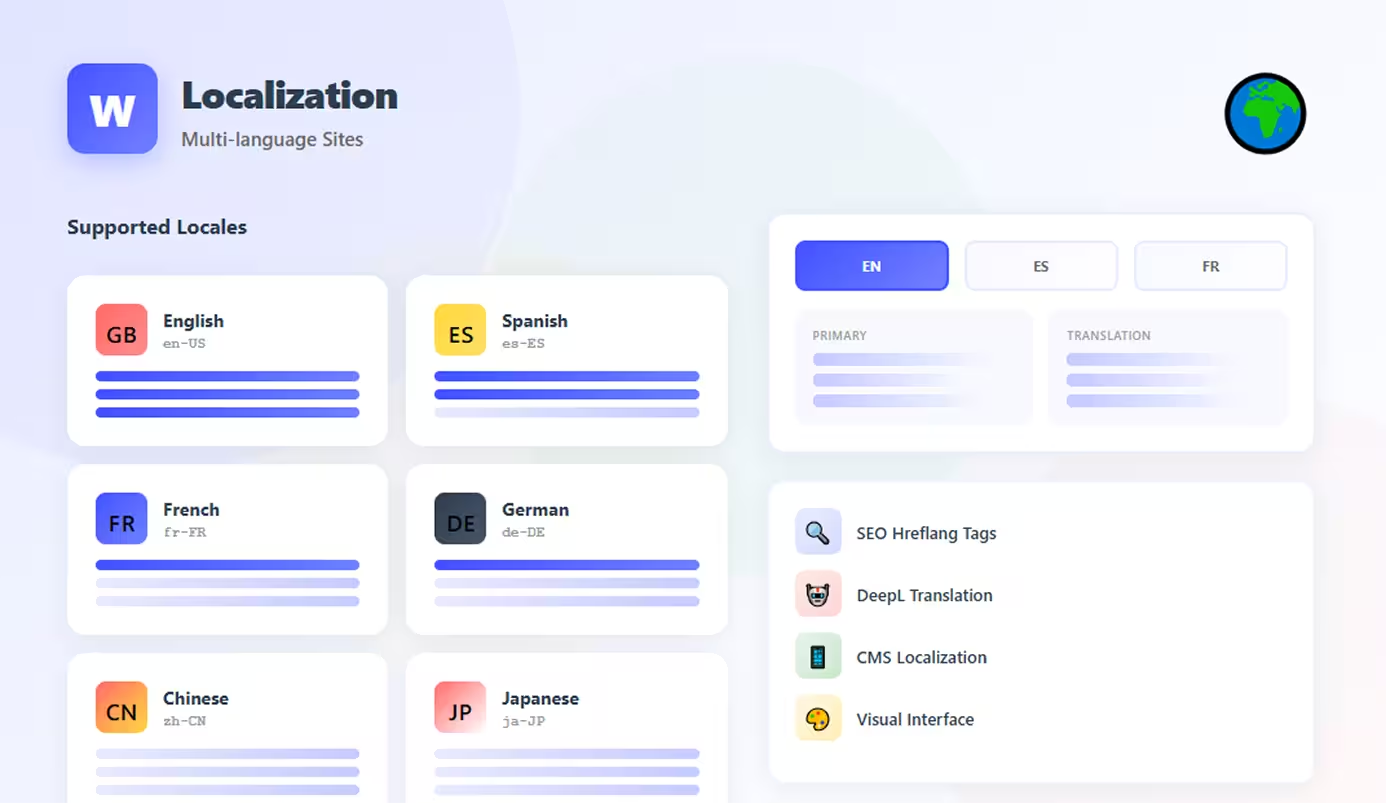
Visual Translation Interface: Translate content directly in the Designer or Editor with side-by-side views showing original and translated versions simultaneously.
Automatic Locale Switching: Users automatically see content in their browser's preferred language, with manual language switchers easily implemented.
SEO Optimization: Webflow automatically generates proper hreflang tags and manages locale-specific sitemaps for international SEO.
Publishing Control: Publish locales independently—launch translations when ready without affecting the primary locale.
CMS Localization: Translate dynamic CMS content with the same visual interface used for static pages.
Pricing and Plan Requirements
Localization is an add-on separate from site plans:
- Localization Essential: $9/month per locale (up to 3 locales)
- Localization Advanced: $29/month per locale (up to 10 locales)
- Includes machine translation via DeepL integration
- Asset localization for media and files
Requirements:
- Available on CMS or Business site plans
- Cannot be used on Basic plan
- Each locale is billed separately
Example pricing:
- Primary locale (English): Included in site plan
- Secondary locale (Spanish): +$9/month
- Third locale (French): +$9/month
- Total: Site plan + $18/month for 2 additional locales
When to Use Webflow Localization
Ideal for:
- Businesses targeting multiple countries or language regions
- Sites needing 3-10 language versions
- Teams wanting visual translation management
- Projects requiring SEO-optimized multilingual sites
- Brands maintaining consistent design across locales
Consider alternatives if:
- You only need 1-2 languages (may be simpler with page duplication)
- You need 10+ locales (costs add up)
- Budget is extremely limited (third-party tools may be cheaper)
Setting Up Webflow Localization
Implementing Webflow Localization involves configuration steps that establish your multilingual structure.
Enabling Localization Add-on
Step 1: Access Localization Settings
- Open your Webflow project
- Go to Project Settings
- Navigate to Publishing tab
- Click "Add Localization"
Step 2: Purchase Add-on
- Choose Essential or Advanced plan
- Select number of locales needed
- Complete payment
- Localization activates immediately
Adding Locale Codes
Step 3: Configure Locales
- In Localization settings, click "Add Locale"
- Enter locale code (e.g., es, fr, de-DE, pt-BR)
- Use ISO 639-1 language codes
- Add region codes for variants (en-US vs en-GB)
- Set display name shown to users
Common locale codes:
- English: en, en-US, en-GB
- Spanish: es, es-ES, es-MX
- French: fr, fr-FR, fr-CA
- German: de, de-DE, de-AT
- Portuguese: pt, pt-BR, pt-PT
Configuring Primary and Secondary Locales
Primary Locale:
- Your default language (usually English)
- Source for translations
- Always published first
Secondary Locales:
- Additional languages you're adding
- Translated from primary locale
- Can be published independently
Setting defaults:
- Designate one locale as primary
- All others become secondary locales
- Primary locale content serves as translation source
URL Structure Options
Webflow offers two URL structures for locales:
Subdirectory (Recommended):
- Format:
yoursite.com/es/for Spanish - Format:
yoursite.com/fr/for French - Pros: Single domain, easier SEO, better for most sites
- Cons: Requires proper hosting setup
Subdomain:
- Format:
es.yoursite.comfor Spanish - Format:
fr.yoursite.comfor French - Pros: Separate site structures, easier analytics separation
- Cons: More complex setup, splits SEO authority
Best practice: Use subdirectories unless you have specific technical requirements for subdomains.
Setting Up Publishing Workflows
Publishing strategy:
Independent Publishing:
- Publish primary locale first with all content
- Publish secondary locales as translations complete
- Users see 404 if locale unpublished
Fallback Behavior:
- Configure what happens when locale unpublished
- Option to redirect to primary locale
- Or show "coming soon" message
Translating Your Content
Content translation is the core of localization—ensuring all text appears correctly in each language.
Manual Translation Workflow
Using Webflow's Translation Interface:
- Access Translation Mode
- Click Localization icon in Designer/Editor
- Select locale you're translating
- Interface shows primary and secondary side-by-side
- Translate Text Elements
- Click any text element
- Edit in secondary locale panel
- Original text remains visible for reference
- Changes apply only to selected locale
- Translate CMS Content
- Open CMS Collections
- Switch to secondary locale
- Translate each item's fields
- Images and media can be localized per item
- Review and Publish
- Preview secondary locale
- Check all pages for completeness
- Publish when ready
Machine Translation Options
DeepL Integration (Advanced plan):
- Automatic translation with one click
- Supports 30+ languages
- Higher quality than Google Translate
- Review and edit machine translations
Workflow:
- Enable DeepL in Localization settings
- Add API key (included in Advanced plan)
- Select content to translate
- Click "Auto-translate"
- Review and refine translations
Limitations:
- Not perfect—always review
- Misses context and nuance
- May not handle technical terms well
Translation Management
Best practices:
Professional Translation:
- For business-critical content, use professional translators
- Export content to CSV or Google Sheets
- Send to translation agency
- Import completed translations
Content Guidelines:
- Keep primary locale as source of truth
- Never edit secondary locales directly (sync from primary)
- Use translation memory tools for consistency
- Style guides for each locale
Best Practices for Content Translation
Writing for Translation:
- Use simple, clear language in primary locale
- Avoid idioms and slang that don't translate
- Keep sentences concise
- Consider character length (German is ~30% longer than English)
- Plan for text expansion in layouts
Quality Control:
- Have native speakers review translations
- Test all interactive elements in each locale
- Verify forms and error messages are translated
- Check date and number formats (cultural adaptation)
Localizing Design Elements
Design localization ensures visual elements work across all languages and cultures.
Translating Images and Media
Locale-Specific Assets:
When to localize images:
- Images containing text (graphics, infographics, screenshots)
- Cultural references not universal
- Product photos with region-specific versions
- People in imagery reflecting local demographics
Implementation:
- Upload locale-specific images to CMS
- Use asset localization feature
- Assign different images per locale
- System automatically shows correct version
Adapting Layouts for Different Languages
Layout Challenges:
Text Expansion:
- German, French often 30-40% longer than English
- Design with flexible containers
- Use auto-width rather than fixed
- Test with longest expected translations
Text Contraction:
- Chinese, Japanese often shorter than English
- May need minimum widths to maintain design
- Check button sizing and spacing
Solutions:
- Responsive typography that adapts
- Flexible layouts using flexbox/grid
- Conditional styling per locale (advanced)
RTL (Right-to-Left) Language Support
Languages requiring RTL:
- Arabic, Hebrew, Urdu, Persian
Webflow RTL Limitations:
- No native RTL support currently
- Requires custom CSS implementation
- Complex to implement properly
Workaround:
css
[lang="ar"] {
  direction: rtl;
}
Better approach:
- Use specialized RTL platforms if these languages are primary
- Or hire RTL specialists for custom implementation
Locale-Specific Styling
Conditional Design:
Using Locale Classes:
- Add locale-specific classes to body tag
- Style differently per locale
- Adjust spacing, fonts, or colors
Example use cases:
- Different fonts for Asian languages
- Adjusted line-height for diacritics
- Color meanings vary by culture (white = mourning in some cultures)
SEO for Multi-language Sites
International SEO ensures each locale ranks properly in search engines.
Hreflang Tags
What they do:
- Tell Google which language version to show users
- Prevent duplicate content issues
- Direct users to appropriate locale
Webflow handles automatically:
- Generates correct hreflang tags
- Includes all locale versions
- Updates when locales added/removed
Manual check:
- View page source
- Verify hreflang tags present
- Confirm all locales listed
Locale-Specific Meta Data
Translate all SEO elements:
- Meta titles: Translated and culturally adapted
- Meta descriptions: Compelling in each language
- OG tags: Social sharing optimized per locale
- Alt text: All images have translated descriptions
Don't forget:
- URL slugs: Translate page URLs when possible
- Schema markup: Localize structured data
- Sitemaps: Locale-specific sitemaps generated
International SEO Best Practices
Optimization strategies:
Keyword Research Per Locale:
- Don't just translate keywords
- Research actual search terms in each language
- Cultural differences in search behavior
Local Backlinks:
- Build links from local domains (.fr, .de, .es)
- Guest post in local language publications
- Partner with regional influencers
Server Location:
- Webflow hosts on global CDN
- Fast loading worldwide
- No server location concerns
Indexing Considerations
Google Search Console:
- Add all locale versions as properties
- Monitor performance per locale
- Fix crawl errors specific to locales
Avoid:
- IP redirection (bad for SEO)
- Cookie-based locale selection
- JavaScript-only language switchers
Alternative Approaches
When Webflow Localization doesn't fit, alternatives exist.
Third-Party Translation Tools
Weglot:
- Automatic translation layer
- Easier setup than Webflow native
- $99+/month for 10,000 words
- Visual translation editor
- Pros: Quick setup, good for many languages
- Cons: Ongoing subscription, less Webflow integration
Linguana:
- Webflow-specific translation tool
- Visual interface
- $19+/month
- Pros: Affordable, designed for Webflow
- Cons: Less features than Weglot
WPML/Polylang Alternatives:
- Not applicable (WordPress-only)
Custom Code Solutions
Manual Duplication:
- Duplicate pages for each language
- Translate content manually
- Create language switcher links
- Pros: Full control, no extra cost
- Cons: Difficult to maintain, scales poorly
Custom JavaScript:
- Client-side translation scripts
- Google Translate API integration
- Pros: Flexible, customizable
- Cons: SEO challenges, complex setup
When Alternatives Make Sense
Choose third-party tools if:
- You need 20+ languages (cost-effective)
- You want automatic translation with minimal effort
- Budget allows ongoing subscription
Choose manual duplication if:
- You only need 1-2 languages
- Budget is extremely limited
- Content updates are infrequent
Choose Webflow Localization if:
- You need 3-10 languages
- SEO is crucial
- You want native Webflow integration
- Team prefers visual translation workflow
Conclusion
Webflow Localization provides a powerful, integrated solution for building multilingual websites that serve global audiences. By handling URL structures, hreflang tags, and translation workflows natively, Webflow eliminates much of the complexity traditionally associated with international sites.
The key to success is thoughtful planning—understand your target locales, budget for translation costs (both platform fees and professional translation), and design flexible layouts that accommodate text expansion. While Webflow's localization tools are sophisticated, they're most effective when combined with professional translation and cultural adaptation.
For businesses seriously targeting international markets, the investment in Webflow Localization pays dividends through better SEO, improved user experience, and streamlined content management. The visual interface makes ongoing translation updates accessible to content teams, not just developers.
Start strategically: Launch with your most important secondary locale, validate the approach, then expand to additional languages. Monitor analytics to understand which locales drive the most value, and invest translation resources accordingly.
Your global website is within reach—Webflow Localization provides the foundation, but success requires ongoing attention to translation quality, cultural adaptation, and local market understanding. Combine the platform's capabilities with genuine localization expertise to create authentic, compelling experiences for every audience you serve.
FAQs
Q: Can I translate my Webflow site for free?
A: Webflow Localization requires a paid add-on ($9-29/month per locale). Free alternatives include manual page duplication or third-party tools with free tiers, but these have significant limitations. For professional results with proper SEO, budget for paid localization.
Q: How many languages can I add to my Webflow site?
A: Localization Essential supports up to 3 locales, Advanced supports up to 10 locales (including primary). If you need more than 10 languages, consider third-party tools like Weglot which support unlimited languages.
Q: Does Webflow Localization work with CMS content?
A: Yes, you can translate all CMS collection items using the same visual interface as static pages. Each locale maintains its own version of CMS content, allowing you to publish translations as they're completed.
Q: Will adding locales affect my site's loading speed?
A: No, localization doesn't significantly impact performance. Users only load their selected locale's content. Webflow's CDN ensures fast delivery regardless of user location. Each locale is essentially a separate version of your site.
Q: Can I use automatic translation or do I need manual translation?
A: Localization Advanced includes DeepL machine translation for quick drafts. However, professional human translation is strongly recommended for business-critical content. Use machine translation as a starting point, then have native speakers review and refine.