Introduction
A resource center is a centralized hub where customers, users, or employees can find helpful information, guides, tutorials, and documentation about your product or service. Building one in Webflow combines the platform's powerful CMS capabilities with complete design control to create beautiful, functional knowledge bases.
Traditional resource centers often rely on generic platforms like Zendesk or Intercom that limit design customization. Webflow offers a compelling alternative: build a fully branded, custom-designed resource center that matches your website's aesthetics while providing all the functionality users expect—search, categories, filtering, and intuitive navigation.
The benefits are substantial: improved customer self-service, reduced support tickets, better user onboarding, and enhanced SEO through valuable content. A well-designed resource center becomes a strategic asset that scales with your business.
This comprehensive guide walks you through building a resource center in Webflow from planning and CMS setup to design implementation and publication. Whether you're creating a help center, knowledge base, documentation hub, or learning resource library, you'll learn the exact steps to structure content, design beautiful interfaces, and launch a professional resource center that serves your audience effectively.
What is a Resource Center?
A resource center is an organized collection of helpful content designed to educate users, answer questions, and provide self-service support. It serves as your knowledge hub accessible 24/7 without human intervention.
Types of Content Included
Resource centers typically contain:
- Help articles: Solutions to common problems and how-to guides
- Documentation: Technical references and API documentation
- Tutorials: Step-by-step instructions for using features
- FAQs: Quick answers to frequently asked questions
- Video guides: Visual walkthroughs and demonstrations
- Best practices: Strategic guidance and recommendations
- Glossaries: Definitions of terminology and concepts
- Release notes: Updates and new feature announcements
Benefits for Businesses and Users
For businesses:
- Reduces support burden by enabling self-service
- Scales support without increasing team size
- Improves SEO with valuable, searchable content
- Onboards users more effectively
- Demonstrates expertise and builds trust
For users:
- Instant answers available anytime
- Comprehensive information in one location
- Self-paced learning at their convenience
- No waiting for support responses
Examples of Effective Resource Centers
- Stripe Documentation: Technical references with clear navigation
- Slack Help Center: Organized by user role and task
- Notion Help & Support: Clean design with powerful search
- Webflow University: Learning-focused with video tutorials
Planning Your Resource Center
Effective resource centers start with thoughtful planning before touching any design tools.
Defining Content Structure
Audit existing content:
- Gather all current help documentation
- Identify frequently asked support questions
- Review customer pain points and confusion areas
- List all features requiring explanation
- Compile existing tutorials and guides
Content gaps:
- What questions aren't answered?
- Which features lack documentation?
- Where do users get stuck most often?
Organizing Categories and Topics
Category strategies:
By user type:
- Getting Started
- For Administrators
- For End Users
- For Developers
By product area:
- Account Management
- Features & Functionality
- Billing & Pricing
- Integrations
- Troubleshooting
By task:
- Setting Up Your Account
- Managing Your Team
- Creating Content
- Analyzing Data
- Customizing Settings
Choose the organizational structure that best matches how your users think about and search for information.
Creating a Content Hierarchy
Three-level structure works well:
- Category (broad topic area)
- Subcategory (specific topic)
- Individual articles
- Subcategory (specific topic)
Example:
- Getting Started
- Account Setup
- How to Create Your First Project
- Inviting Team Members
- Configuring Your Profile
- Account Setup
Determining Search and Filter Needs
Consider implementing:
- Full-text search across all articles
- Category filtering to narrow results
- Tag filtering for cross-category topics
- Popular articles highlighting most-viewed content
- Recent articles showing latest updates
Setting Up the CMS Structure
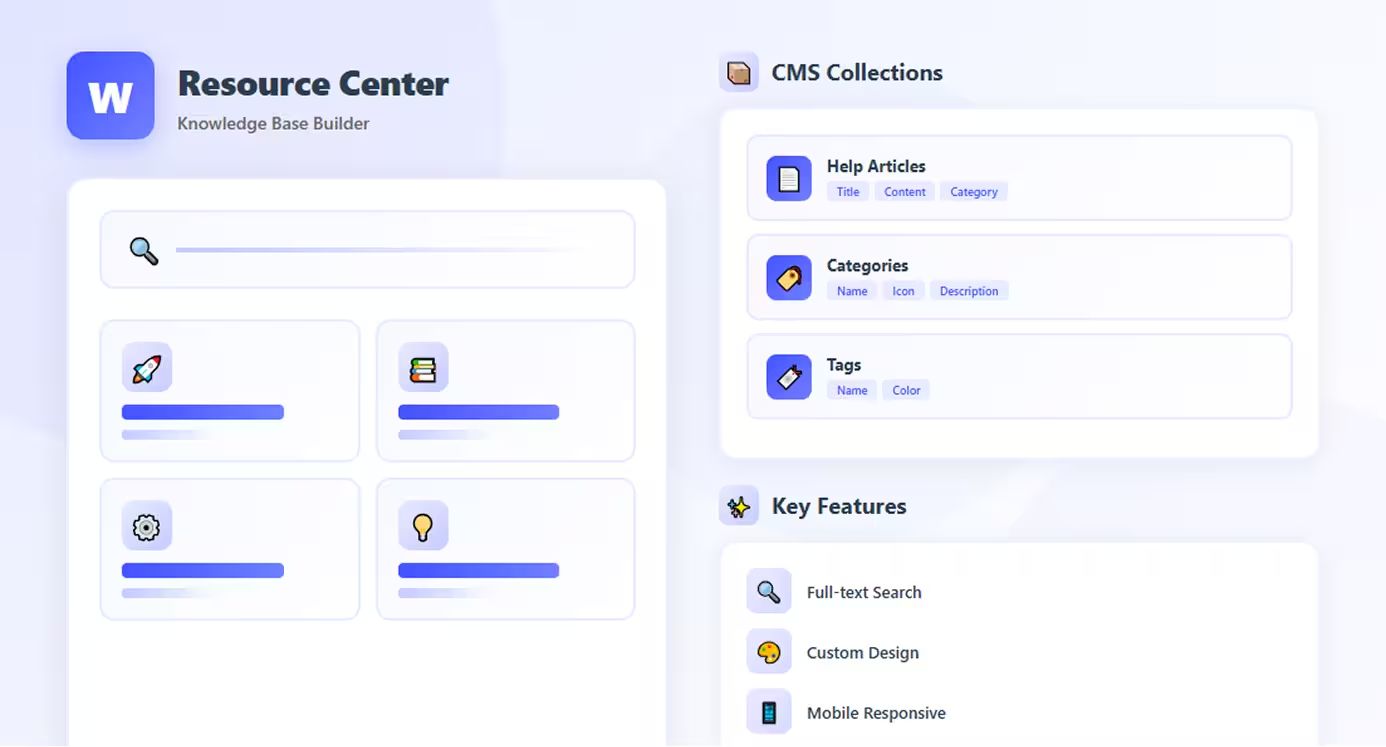
Webflow's CMS Collections power your resource center with dynamic, manageable content.
Creating the Articles Collection
Step 1: Create the Collection
- Open your Webflow project
- Click CMS Collections in the left panel
- Click "+ Create New Collection"
- Name it "Help Articles" or "Resources"
Step 2: Add Essential Fields
Article Title (Name field - auto-created)
- The article headline
Slug (auto-created)
- URL-friendly article identifier
Article Content (Rich Text field)
- Main article body with formatting
- Images, videos, and embedded content
Excerpt (Plain Text or Paragraph)
- Short summary for list pages
- 150-200 characters recommended
Featured Image (Image field)
- Optional hero image or thumbnail
- Recommended size: 1200x630px
Category (Reference field)
- Links to Categories collection (create this next)
Tags (Multi-reference field - optional)
- Cross-category topic tags
- Links to Tags collection
Author (Reference field - optional)
- Links to Authors collection
- Includes author name, photo, bio
Published Date (Date field)
- When article was published
- Enables sorting by recency
Last Updated (Date field)
- Track article freshness
- Show users when content was revised
Read Time (Number field - optional)
- Estimated minutes to read
- Calculate: word count ÷ 200 words/minute
Helpful Count (Number field - optional)
- Track "Was this helpful?" votes
- Requires custom code for voting
Setting Up Categories Collection
Step 1: Create Categories Collection
- Create new collection named "Categories"
- This organizes articles into topic groups
Step 2: Add Category Fields
Category Name (Name field)
- The category title (e.g., "Getting Started")
Description (Paragraph field)
- Brief category overview
- Displays on category landing pages
Icon (Image field - optional)
- Visual identifier for category
- Use SVG icons for crisp display
Color (Color field - optional)
- Brand color for category
- Creates visual distinction
Order (Number field)
- Manual sort order
- Display categories in specific sequence
Creating Reference Fields
Link Collections Together:
- In Help Articles collection, add Reference field
- Name it "Category"
- Reference: Categories collection
- This links each article to a category
For multi-reference (tags):
- Create Tags collection with Name field
- In Articles, add Multi-reference field named "Tags"
- Reference: Tags collection
- Articles can have multiple tags
Configuring Author Profiles (Optional)
If you want to show article authors:
Create Authors Collection:
- Author Name (Name field)
- Author Photo (Image field)
- Author Bio (Paragraph field)
- Author Role (Plain text field)
Add to Articles:
- Reference field linking to Authors collection
Designing the Resource Center
With CMS structure complete, design the user-facing pages.
Creating the Main Hub Page
Design Elements:
Hero Section:
- Clear headline: "How can we help you?"
- Prominent search bar
- Brief description of available resources
Category Grid:
- Add Collection List (limit: all)
- Bind to Categories collection
- Design category cards showing:
- Category icon
- Category name
- Article count (via collection count)
- Brief description
- Link to category page
Popular Articles (Optional):
- Show most-viewed or featured articles
- Filter by "Popular" tag or high helpful votes
- Display as cards or list
Recent Updates:
- Show latest articles
- Sort by Published Date (newest first)
- Limit to 5-10 recent items
Designing Article List Pages
Category Landing Pages:
- Create Category Template Page
- Bind to Categories collection
- Display:
- Category name and description
- Breadcrumb: Home > Category
- Article list filtered by category
- Add Collection List for articles:
- Filter: Category is [Current Category]
- Sort: Order or Published Date
- Design article cards with title, excerpt, read time
Search Results (Optional):
- Requires third-party integration (Algolia, Jetboost)
- Or use Webflow's native search with custom styling
Building Individual Article Templates
Article Template Page:
- Create Article Template Page
- Bind to Help Articles collection
- Design article layout:
Header Section:
- Article title (H1)
- Category badge/link
- Published/updated dates
- Author info (if using)
- Read time estimate
Article Body:
- Rich text content area
- Proper typography hierarchy
- Code block styling (if needed)
- Image caption styling
Sidebar (Optional):
- Table of contents (auto-generated from H2s)
- Related articles
- Category navigation
- "Was this helpful?" feedback
Footer Section:
- "Was this helpful?" buttons
- Related articles
- Next/previous article navigation
Adding Search Functionality
Native Webflow Search:
- Add Search element to page
- Configure to search Help Articles collection
- Style search input and results
- Limit search to title, excerpt, and content
Enhanced Search (Third-party):
- Jetboost: Advanced filtering and search
- Algolia: Powerful, instant search
- Finsweet Attributes: Client-side filtering
Implementing Category Filters
Manual Category Navigation:
- Create links to each category template page
- Display as sidebar or top navigation
- Highlight active category
Dynamic Filtering:
- Use Jetboost or Finsweet for client-side filtering
- Add filter buttons/dropdowns
- Update article list dynamically
Enhancing User Experience
Small UX improvements make resource centers more effective.
Adding Related Articles
Manual Selection:
- Add Multi-reference field "Related Articles" to collection
- Manually select 3-5 relevant articles per item
- Display at article bottom
Automatic (by category/tags):
- Show other articles with same category
- Show articles sharing tags
- Limit to 3-5 suggestions
Creating Breadcrumb Navigation
Design breadcrumbs:
- Format: Home > Category > Article Title
- Use symbols for consistency
- Link each breadcrumb level
- Display at top of article
Implementing Table of Contents
Auto-generated TOC:
- Use custom code to parse H2 headings
- Create anchor links to sections
- Sticky sidebar for long articles
- Highlight current section on scroll
Manual TOC:
- Add Rich Text field for custom TOC
- More control but requires maintenance
Adding Helpful Resources
Quick Links Sidebar:
- Link to contact support
- Link to community forum
- Link to video tutorials
- Download resources
Feedback Mechanism:
- "Was this helpful? Yes/No" buttons
- Collect feedback for improvement
- Use Webflow forms or custom code
Publishing and Maintaining
Launch and maintain your resource center effectively.
Publishing Your Resource Center
- Review all pages: Check templates and styling
- Add initial content: Populate with 10-20 articles minimum
- Test navigation: Ensure all links work
- Test on devices: Mobile, tablet, desktop
- Configure SEO: Meta titles, descriptions for templates
- Publish: Make live on your domain
Content Management Workflow
Creating New Articles:
- Draft in Google Docs or Notion
- Add to CMS with all fields completed
- Assign category and tags
- Set publish date
- Review and publish
Maintaining Content:
- Regular audits for outdated information
- Update "Last Updated" dates when revising
- Archive or unpublish obsolete articles
- Monitor "Was this helpful?" feedback
- Track which articles need improvement
Updating and Organizing Content
Best practices:
- Review quarterly for accuracy
- Add new articles for new features
- Consolidate redundant content
- Keep categories balanced (not too many/few articles)
- Update screenshots and examples
Conclusion
Building a resource center in Webflow combines strategic planning with the platform's powerful CMS and design capabilities. By following this guide, you've learned to structure content logically, set up flexible CMS collections, and design user-friendly interfaces that make information accessible.
The key to success is starting with solid planning—understand your users' needs, organize content intuitively, and design for easy discovery. Webflow's visual CMS makes managing and updating content straightforward once the structure is established.
Remember that a resource center is a living project that grows with your product. Start with core content covering the most common questions and needs, then expand based on user feedback and support trends. The initial setup requires effort, but the ongoing benefits—reduced support load, better user experience, and improved SEO—make it worthwhile.
Your custom-designed resource center differentiates your brand while providing genuine value to users. Unlike generic help center platforms, Webflow lets you create an experience that feels seamlessly integrated with your main website, reinforcing your brand at every touchpoint.
Start building today—plan your structure, set up your CMS collections, and design pages that make finding help effortless for your users.
FAQs
Q: Can I migrate existing help content to Webflow?
A: Yes. Export content from your current platform to CSV, then import into Webflow CMS. You'll need to format the CSV with columns matching your Webflow collection fields. For large migrations, consider using Webflow's API or tools like Whalesync for automated syncing.
Q: How do I add advanced search functionality?
A: Webflow's native search works for basic needs. For advanced features like instant results, filters, and typo tolerance, integrate Algolia (powerful but requires setup) or use Jetboost (easier, Webflow-specific). Both require some custom code but significantly enhance search capability.
Q: Can users submit feedback on articles?
A: Yes, but requires custom code. Add "Was this helpful?" buttons that trigger Webflow forms or use Airtable/Make (formerly Integromat) to collect votes. Store counts in the CMS or external database. Several third-party solutions exist for this specific use case.
Q: How many articles can I have in my resource center?
A: CMS limits depend on your Webflow plan. CMS plan supports 2,000 items, Business plan supports 10,000 items. Each article counts as one item. Plan accordingly based on expected content volume—most resource centers fit comfortably within these limits.
Q: Can I restrict certain articles to logged-in users only?
A: Not natively. Webflow doesn't include membership functionality. You'd need to integrate third-party tools like Memberstack, Webflow Memberships (beta feature), or build custom authentication. For simple gating, consider using password-protected pages for specific sections.